

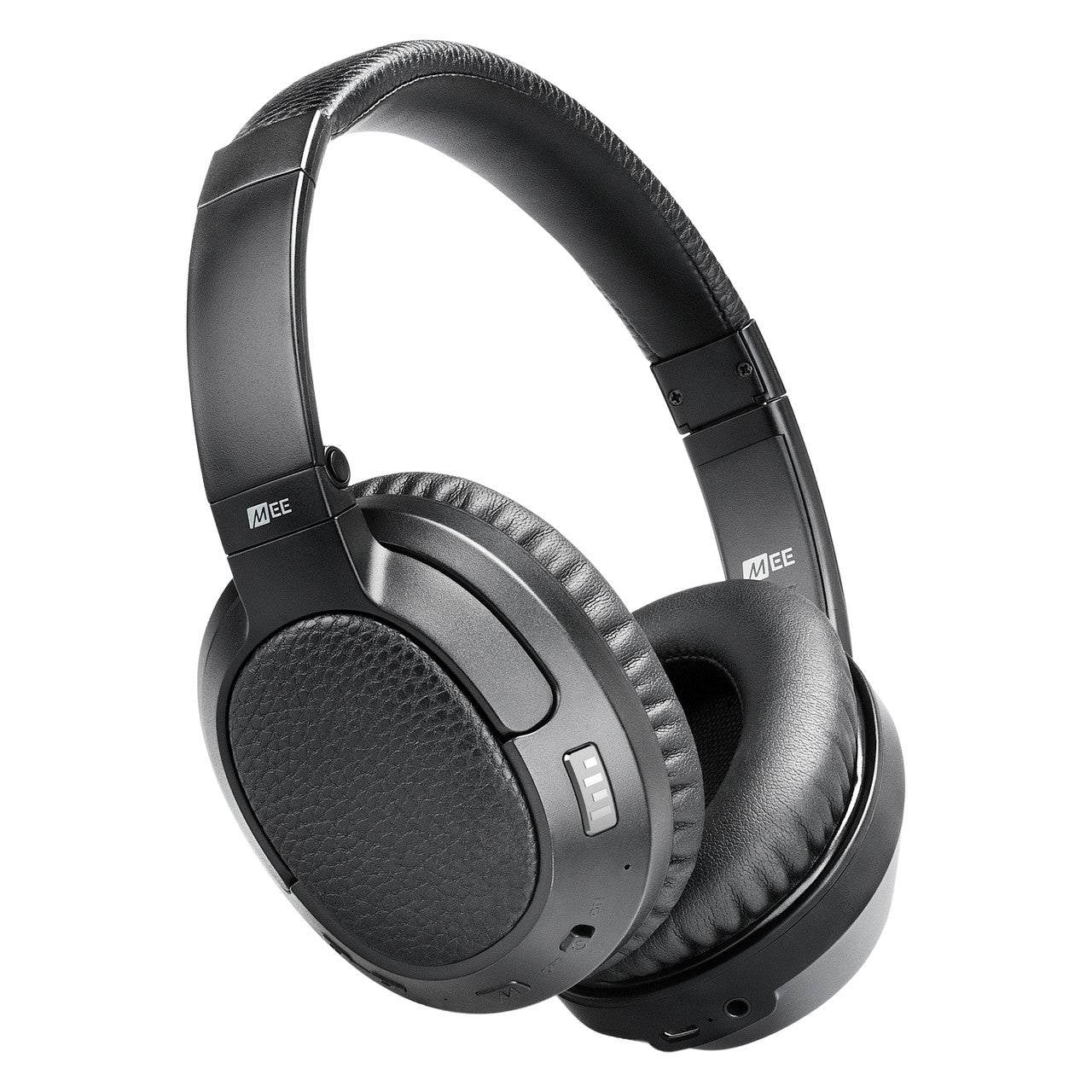
 Cinema 3D headphones with matching wireless charging pad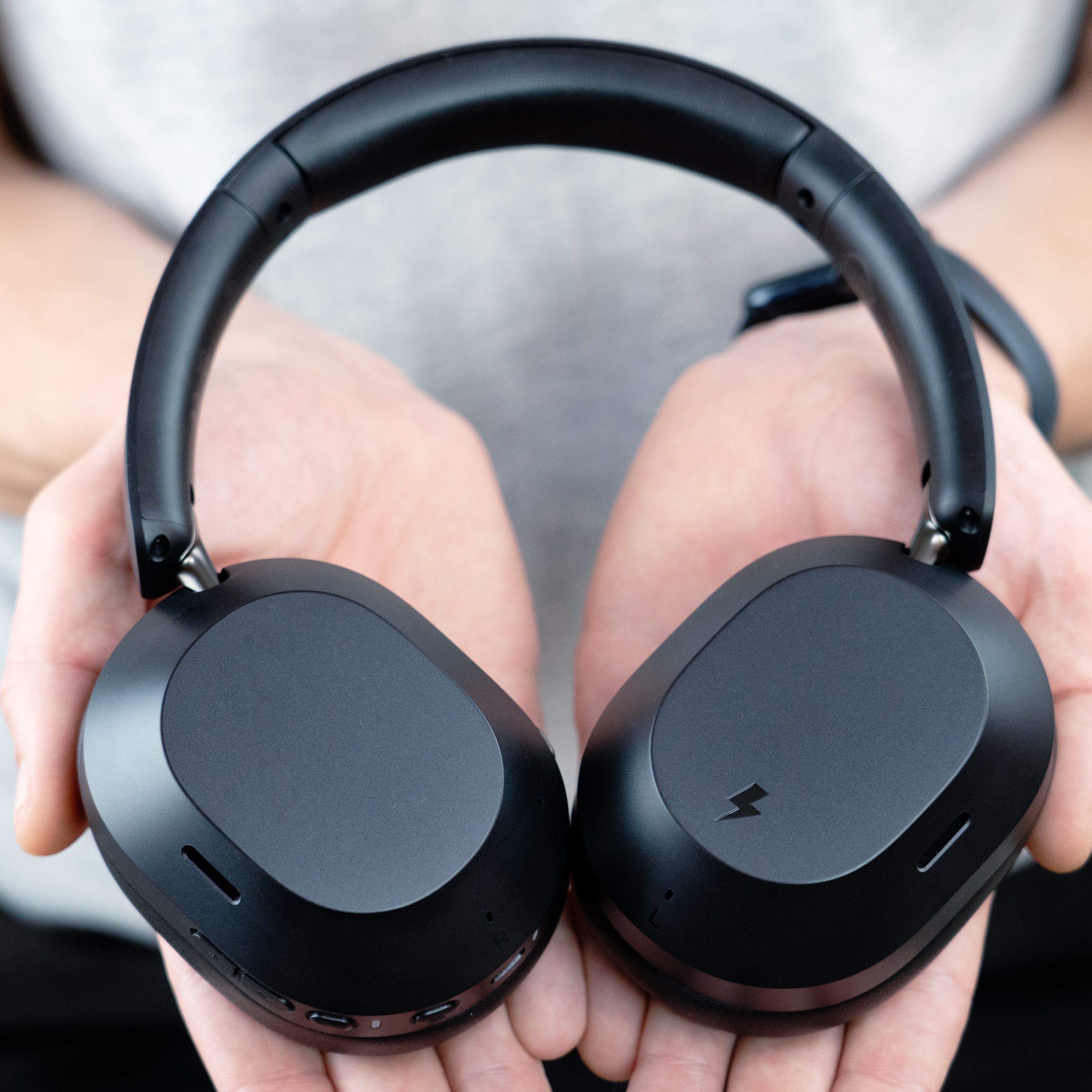

 Cinema 3D Headphones showing the wireless charging area marked with a lightning bolt symbol on the outside of the left earcup of the headphones
The MEE audio Cinema 3D media headphones are built to deliver the most cinematic experience possible in a headphone. Combining advanced technology with our most user-friendly design yet, the Cinema 3D makes it easy for anyone to enjoy TV with headphones while providing power users unprecedented control over a massive suite of features.
This version of the Cinema 3D is designed for TVs with built-in Bluetooth and other Bluetooth devices such as phones, tablets, and computers. For the version that includes a wireless transmitter for TVs without Bluetooth, see the T1CMA3D bundle.
Couldn't load pickup availability
Pickup available at MEE audio Warehouse
We'll email you when your order is readyShare:
Pairs well with
Answers to some common questions can be found below. If you need any additional assistance, please contact us and we’ll get back to you within 1 business day.
-
How long will my product take to ship?
We strive to ship most orders out within 1-2 business days. Most pickup orders are available for pickup in 1 business day. Made-to-order products require additional manufacturing time, which is noted on their respective product pages. For more information, visit our Shipping Info page.
-
I need help with a MEE audio product
Answers to most common questions can be found in our Setup Guides and FAQs. If you need a user manual for your MEE audio product, visit the User Manuals page.
-
I have a question about warranty & returns
All new, retail-packaged products purchased from MEE audio or authorized resellers carry a minimum of a 1-year manufacturer warranty. For more information, see our Warranty Policy. Purchases from MEEaudio.com can also be returned within 30 days in most cases. For more information and exceptions, see our Return & Refund Policy
-
I have a different question
Ask our team in one of the following ways:
- Use the 'Chat' button in the lower right hand corner
- Email support@meeaudio.com
- Call us at (626) 965-1008
We are open M-F 9am-5pm PST (except holidays)
The Cinema 3D blends cutting-edge technology with our most user-friendly design to date - simple for anyone to use, yet packed with advanced features and exceptional flexibility for power users.
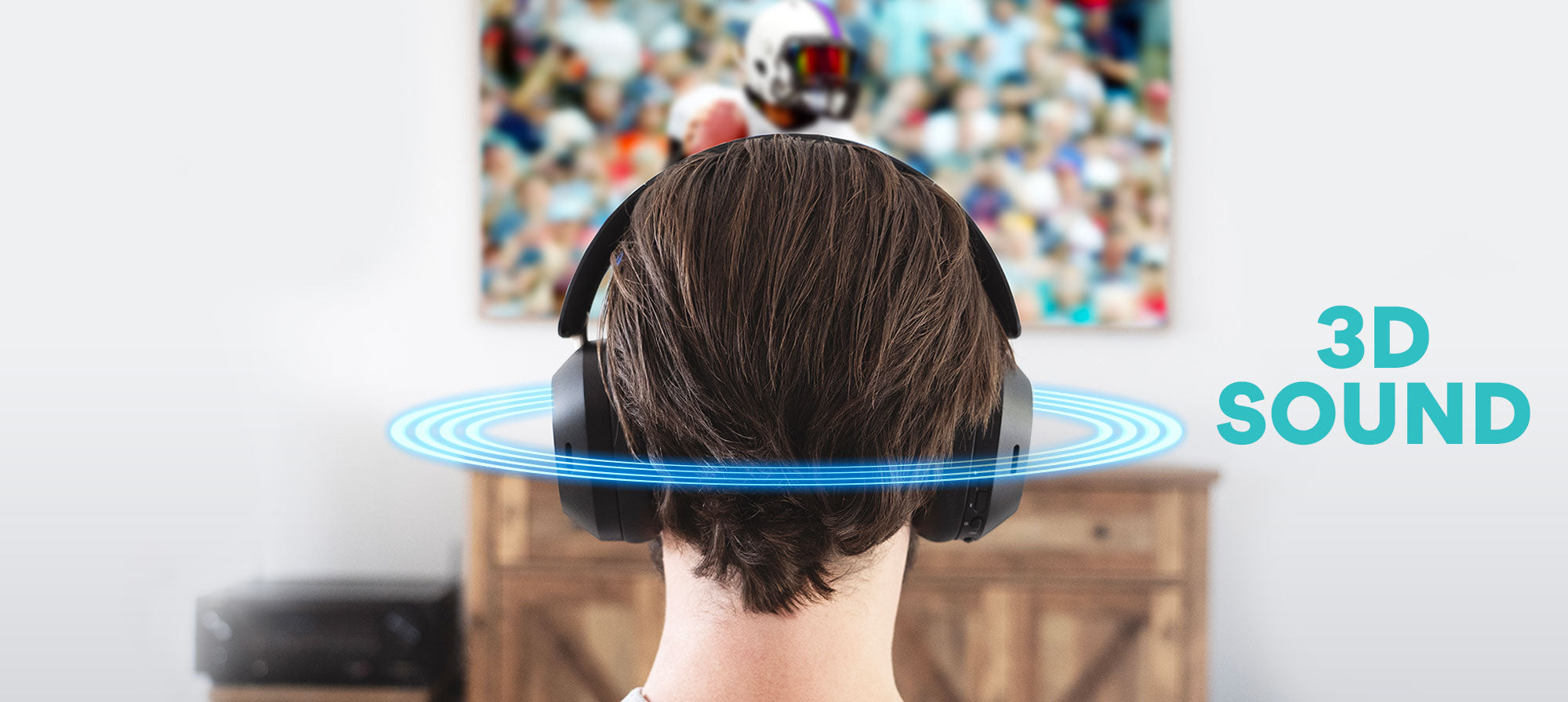
Experience spatial audio that reacts to your head movements in real time, creating an immersive experience that feels like the sound is coming from all around you, rather than just from your headphones.
With 3D Sound enabled, sound moves naturally as you turn your head, increasing immersion and making it feel less like you’re wearing headphones
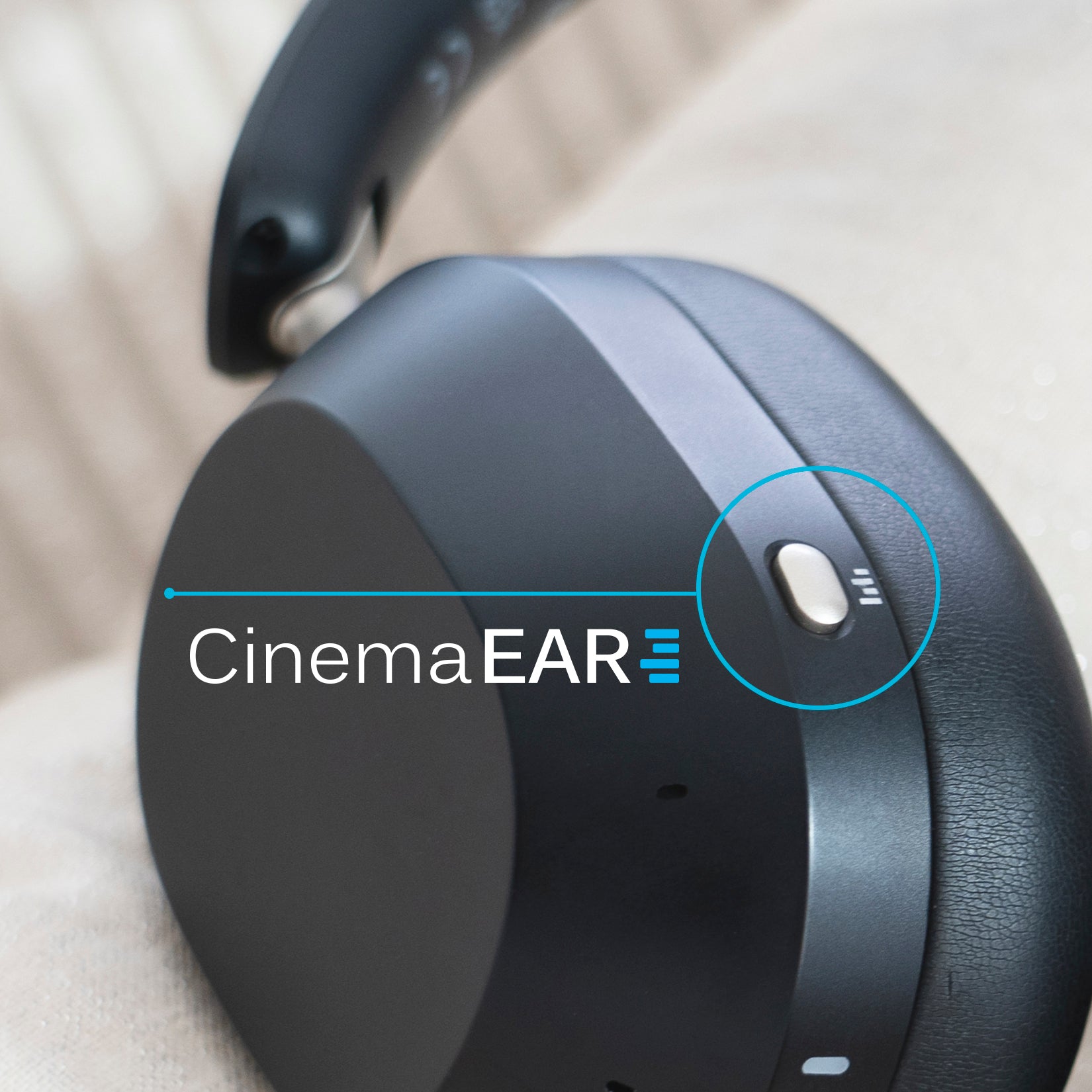
Introducing CinemaEAR.
CinemaEAR is an audio enhancement feature that lets you switch between four different sound profiles at the touch of a button to optimize your listening experience.
Use the dedicated CinemaEAR button to instantly switch between audio modes for clearer dialogue, deeper bass, or balanced sound.

Clear Voice Mode
Boosts speech clarity to make dialogue in movies and TV shows easier to hear over background sounds.

Clear Voice Plus Mode
Offers an alternative enhancement that may provide greater speech clarity and intelligibility for certain listeners.

Dynamic Music Mode
Enhances bass and treble for a more vibrant and engaging music experience.

Bass Boost Mode
Increases bass response and depth for more impact and immersion in both movies and music.
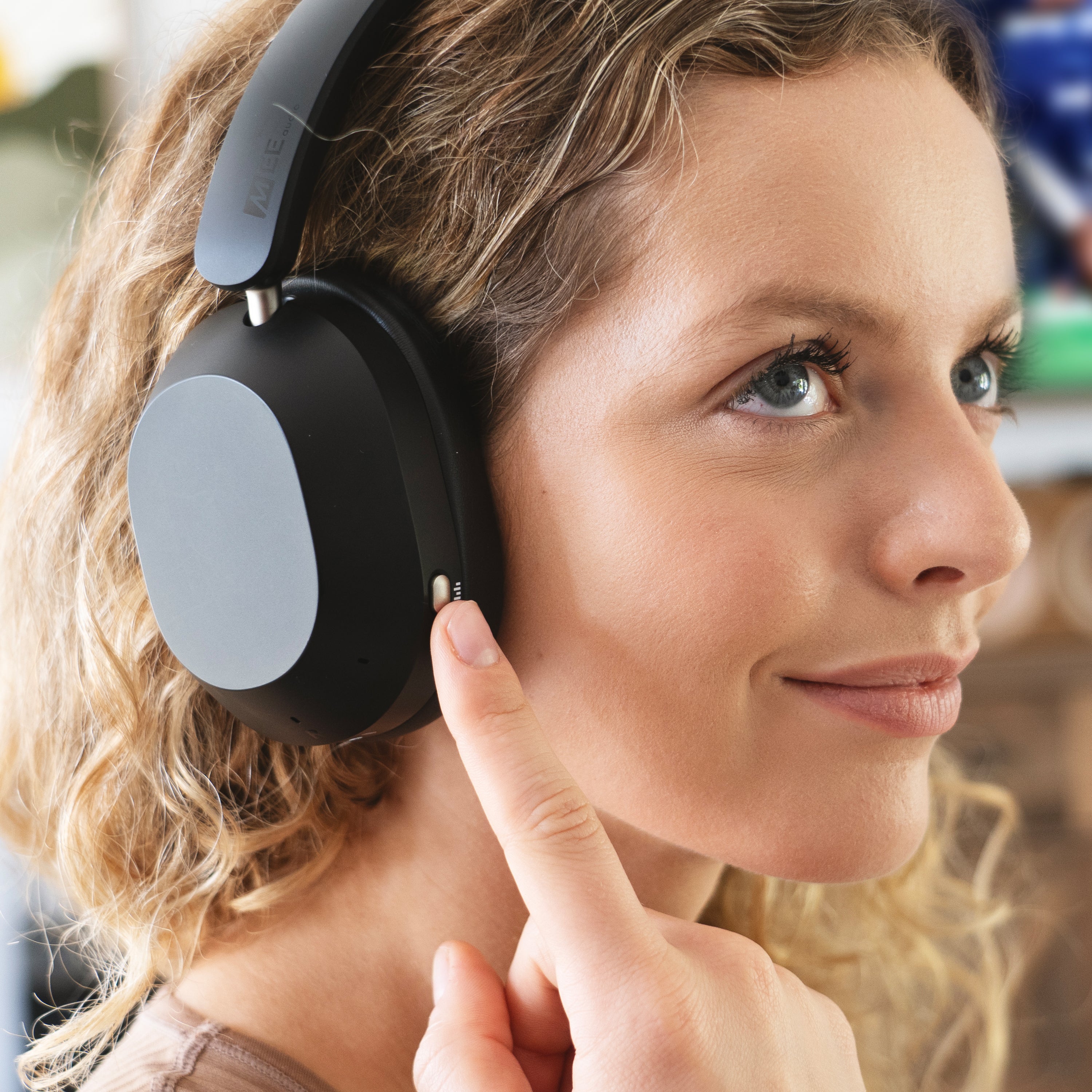
Hear Your TV Better.
Two Clear Voice modes enhance speech clarity by pushing dialogue to the front of the audio mix, making it easier to hear even at lower volumes.
Activate powerful hybrid ANC to block external noise, or switch to transparency mode for improved awareness of your surroundings.
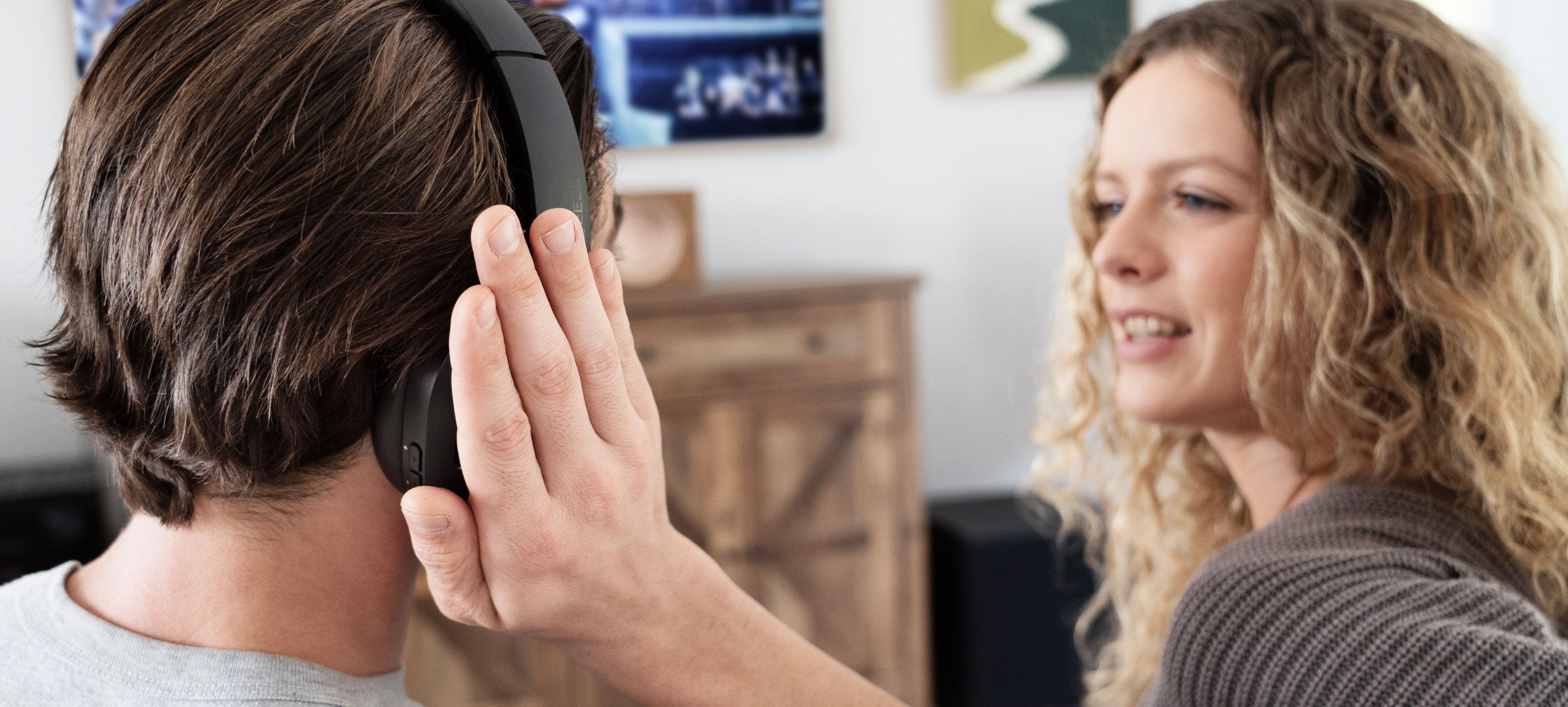
Cover the touch panel firmly with your palm to temporarily mute the audio and activate Transparency mode - perfect for quick chats without taking off your headphones.
Low-Latency Audio
Qualcomm aptX Adaptive technology minimizes wireless audio delay, improving lip-syncing in movies and TV shows with compatible devices.
CD-Quality Wireless Sound
For music listening, the Cinema 3D supports LDAC, Qualcomm® aptX™ HD, and aptX Lossless to maximize audio quality over Bluetooth, as well as LE audio with LC3.
Next-Gen Bluetooth Connectivity
Enjoy broad compatibility with support for both traditional Bluetooth and next-generation Bluetooth Auracast, which is now appearing in newer Bluetooth transmitters, including high-end Samsung and LG TVs.



Qualcomm aptX Adaptive audio
Supports low-latency, robust and high resolution Bluetooth wireless audio.

Qualcomm aptX HD and aptX Lossless
CD-quality 16-bit/44.1kHz wireless streaming for high-res music listening.

Sony LDAC
Exceptional sound over Bluetooth at up to 32-bit/96kHz quality.

Bluetooth Auracast w/LC3
Powered by LE Audio and the advanced LC3 codec, Bluetooth Auracast delivers higher-quality audio at lower bitrates to multiple devices at once.
Lifestyle Features.
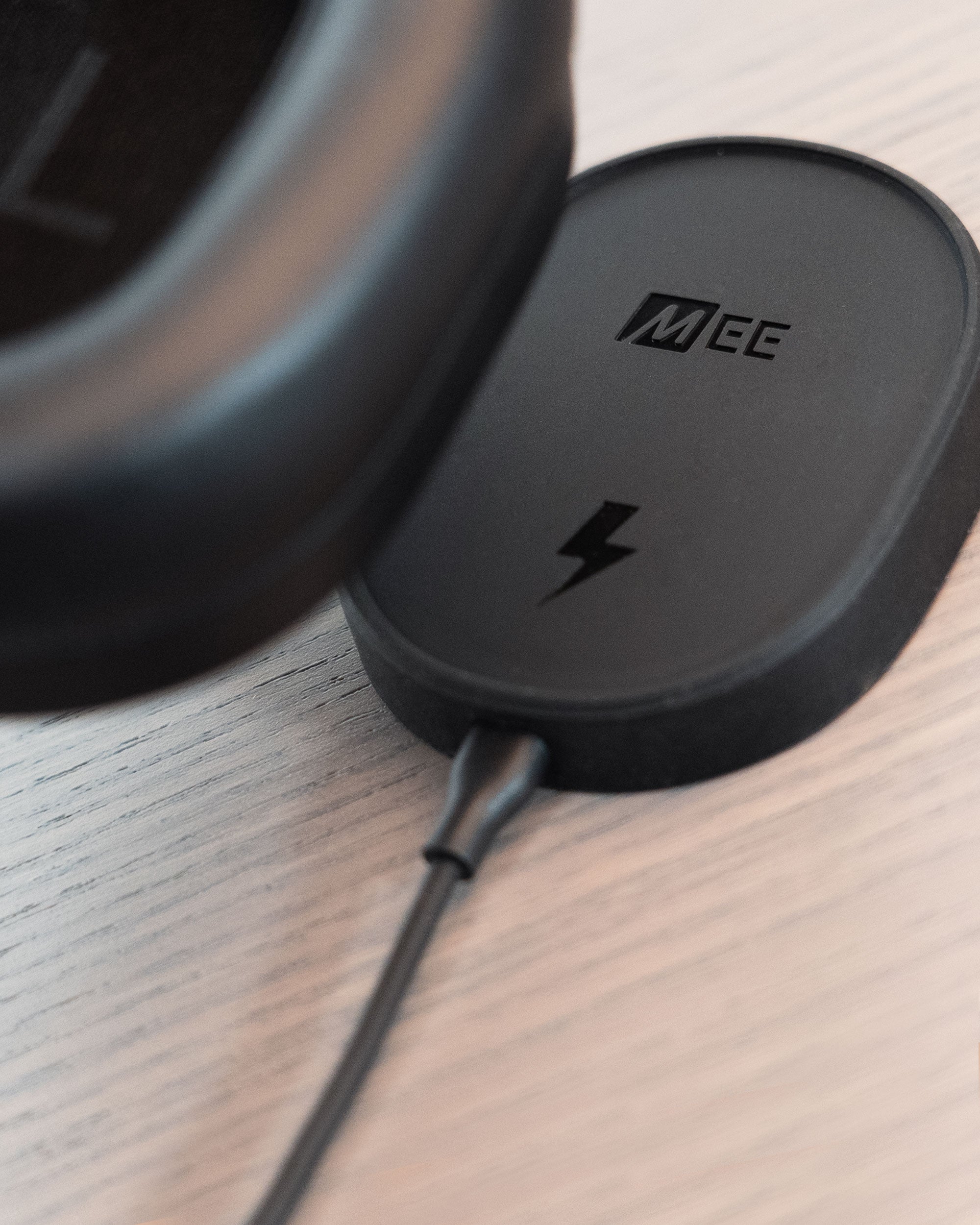
Wireless Charging Pad Included
Magnetic wireless charging pad eliminates the need to plug cables into the headphones for charging and doubles as a smart on/off switch, streamlining operation for maximum convenience and accessibility.
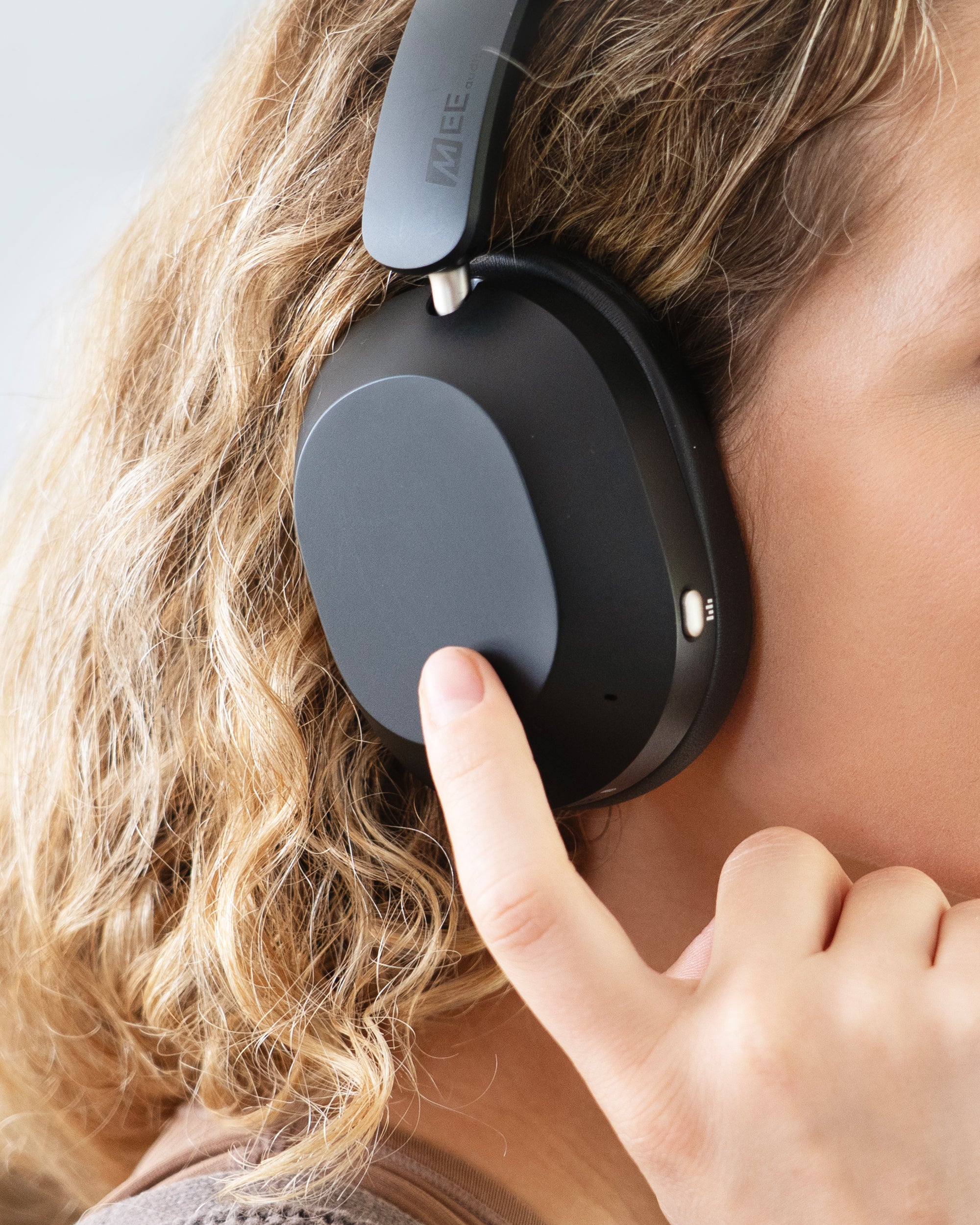
Built-In Touch Control Panel
Effortlessly manage the spatial audio feature, media playback, volume, and calls with intuitive touch gestures on the right earcup.

Dual Control Options
Choose between a touch pad and physical buttons - use the controls that match your preferences and accessibility needs.
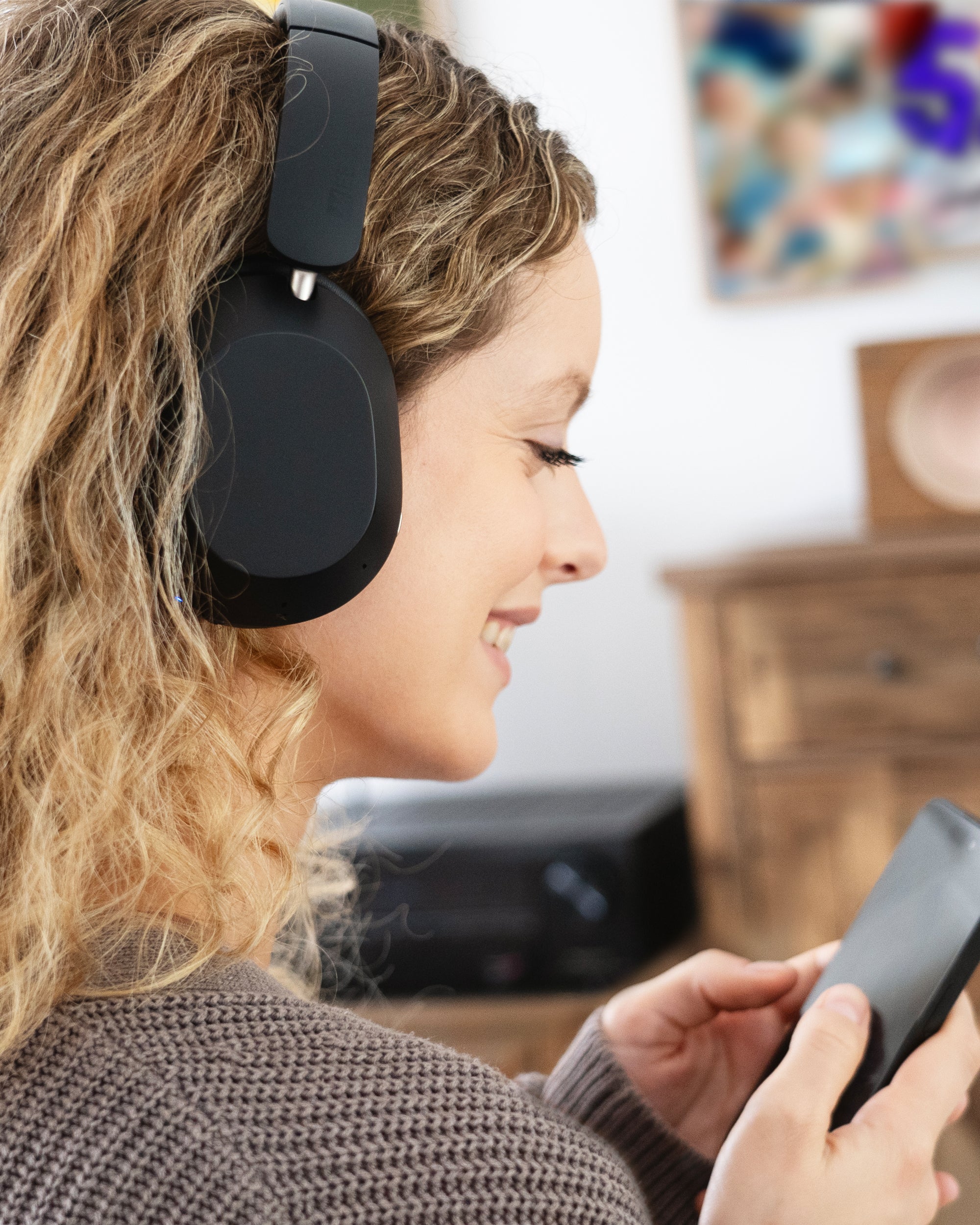
Built-in Headset
Integrated microphone and controls let you take calls and control music playback with compatible devices.
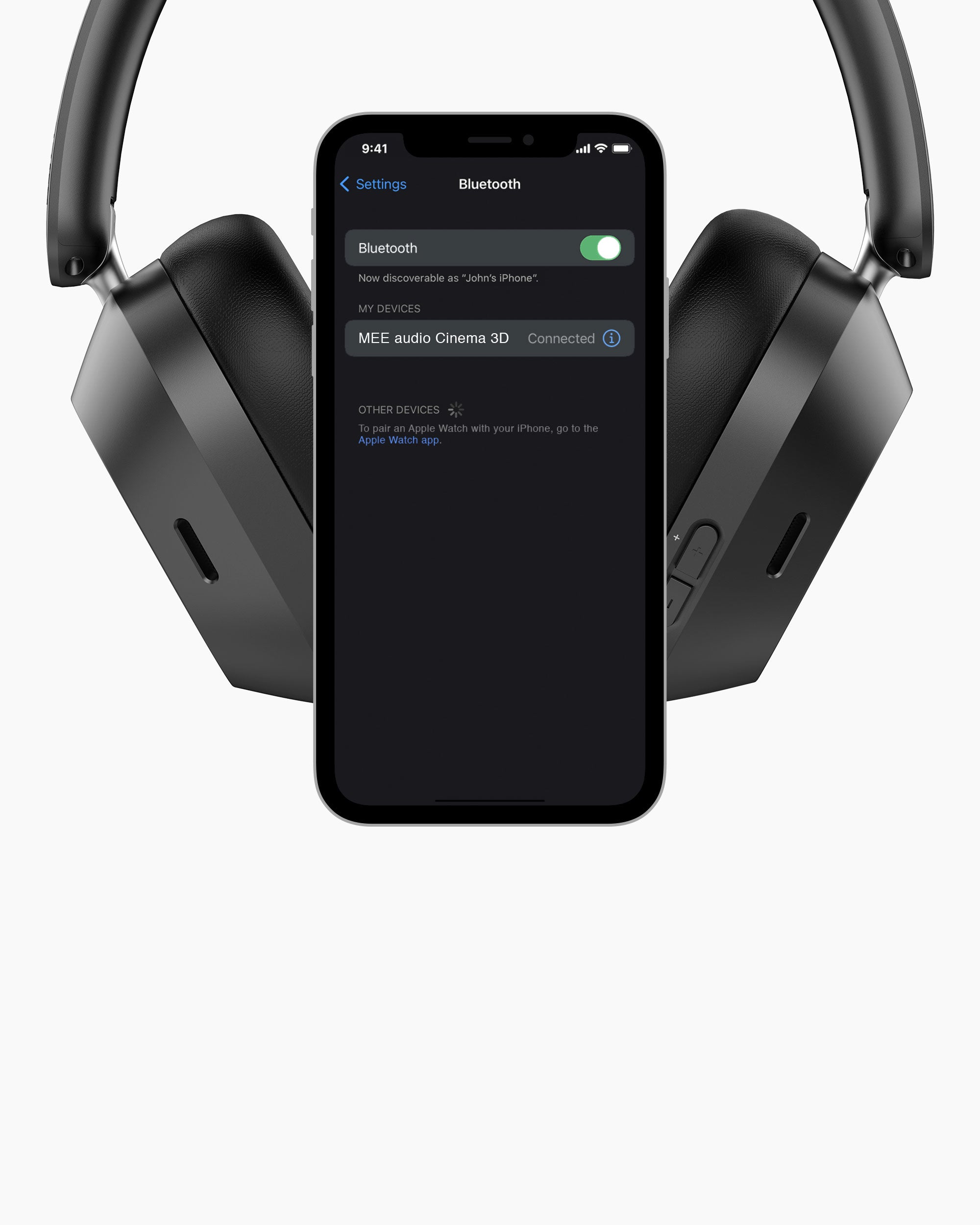
Bluetooth Multipoint
Stay connected to two Bluetooth devices - such as your TV and phone - and watch your favorite shows without missing important calls.

All-day Comfort
Over-ear fit and ultra-soft memory foam pads provide all-day comfort, reduce outside noise, and keep others from hearing your media.
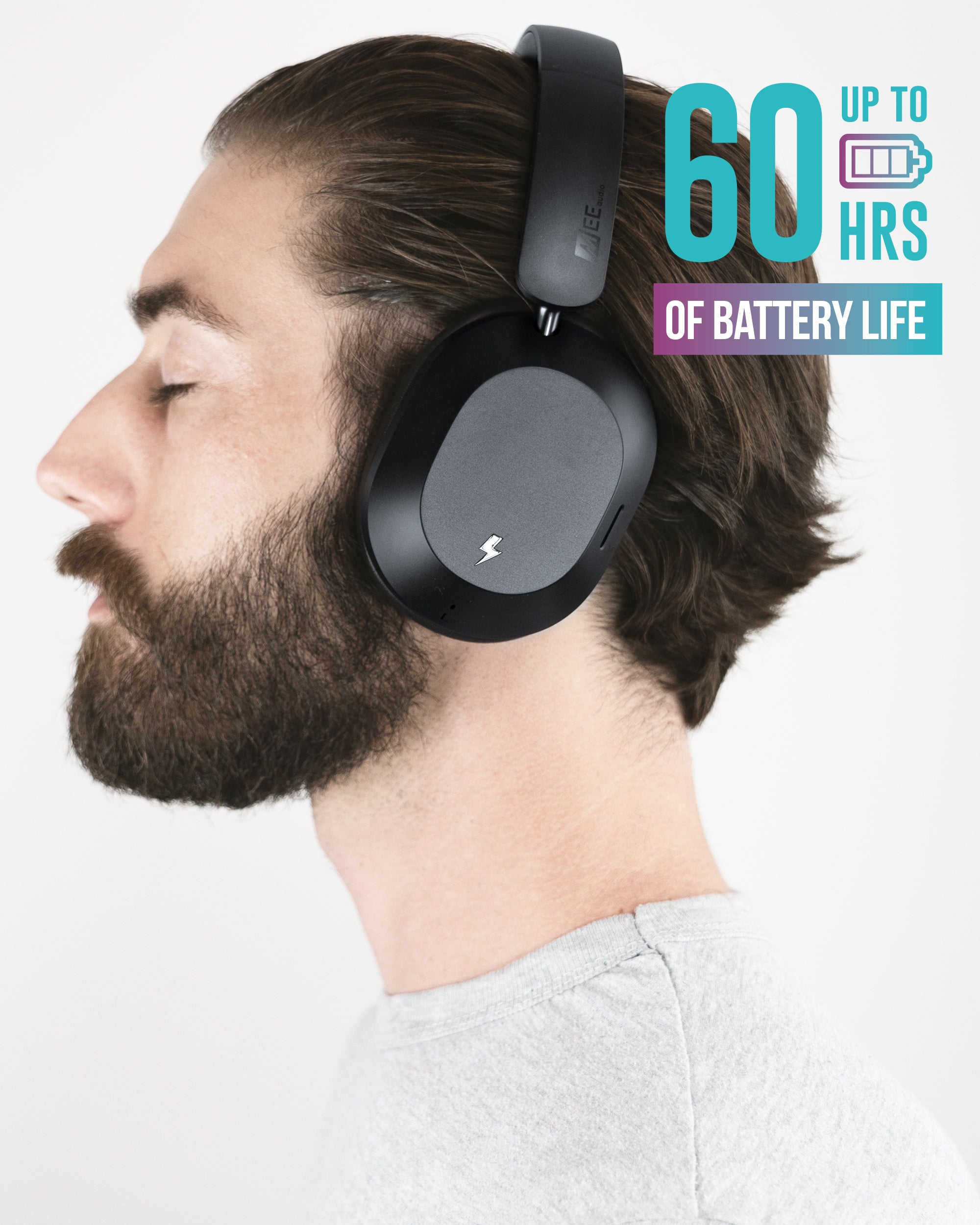
Extended Battery Life
Battery life (ANC Off): up to 60 hours
Battery life (ANC On): up to 35 hours

Wired Audio with USB Type C
Out of power or using a device without Bluetooth? Simply plug in the included USB-C cable and use the Cinema 3D as a wired headphone - you can even choose whether it charges while in use.
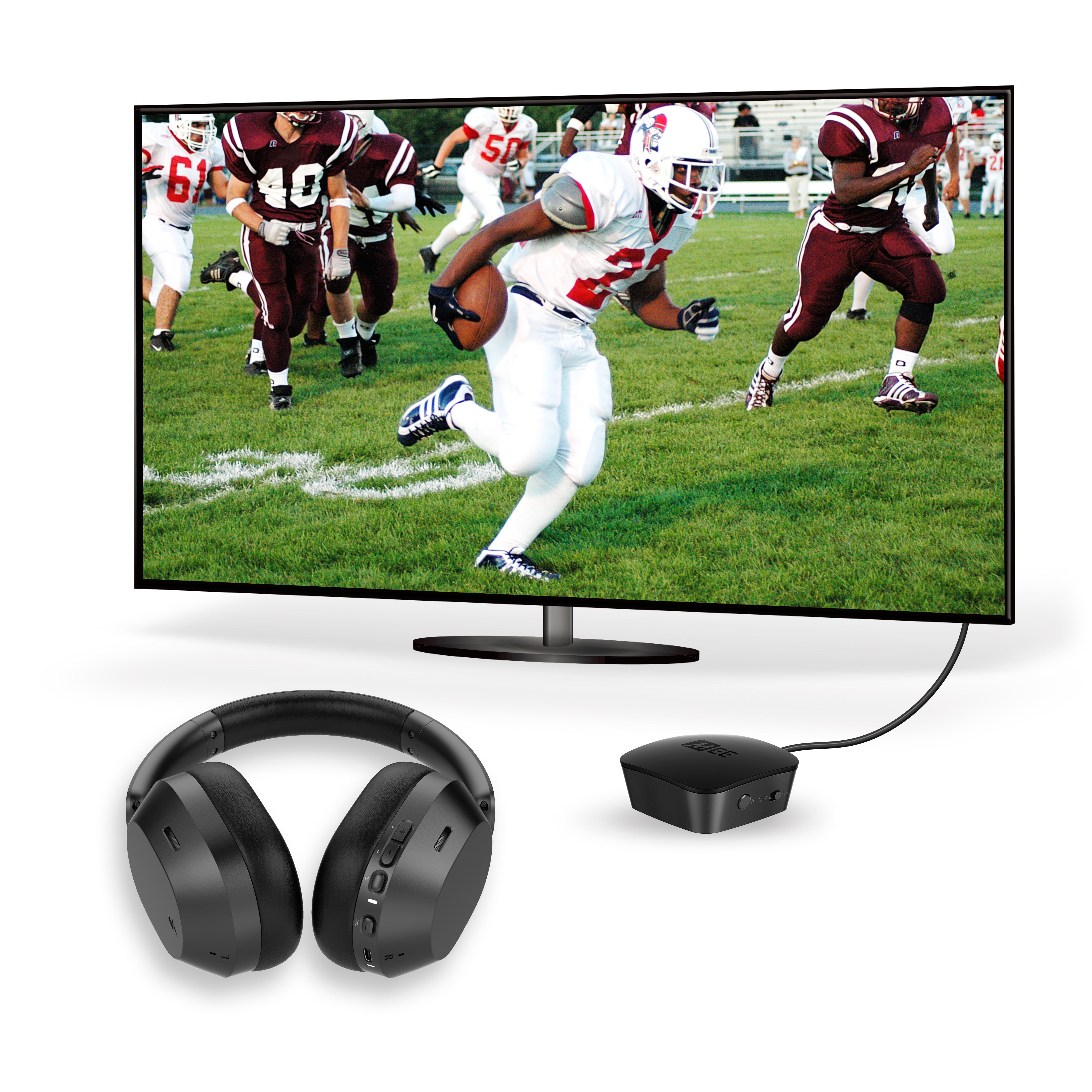
Bundle It.
This version of the Cinema 3D is designed for TVs with built-in Bluetooth and other Bluetooth devices such as phones, tablets, and computers. For the version that includes a wireless transmitter for TVs without Bluetooth, see the T1CMA3D bundle.
Cinema for One
Cinema 3D vs the original Matrix Cinema Headphones
Yes
No
Yes
No
Yes
Yes
Yes
No
Yes
No
Up to 60 hours
Up to 30 hours
Yes
No
Yes
No
Yes
No
Yes
Yes
Yes
No
Yes
No
CinemaEAR Audio Enhancement
CinemaEAR Audio Enhancement
Tech Specs
Headphones
Driver Type
– Moving coil (dynamic)
Driver Size
– 40 mm
Frequency Response
– 20 Hz to 20 kHz
Connection Options
– Bluetooth, Auracast, USB-C
Control Options
– Tactile buttons, touch control panel
Active Noise Canceling (ANC)
– Hybrid, 4 microphones
Transparency Mode
– Yes
Spatial Audio
– Yes, with head tracking
Bluetooth
Bluetooth Version
– Bluetooth 5.4
Audio Codecs Supported
– SBC, LC3, Sony LDAC, Qualcomm® aptX™, Qualcomm® aptX™ HD, Qualcomm® aptX™ Adaptive, Qualcomm® aptX™ Lossless
Operating Range
– up to 30 ft (10 m)
Multipoint Supported
– Yes
Battery
Battery Type
– Built-in rechargeable batteries Li-ion polymer
Battery Capacity
– 600mAh
Battery Life (ANC Off)
– up to 60 hours
Battery Life (ANC On)
– up to 35 hours
Charging Time
– 2.5 hours
Charging Connector
– USB-C, wireless charging supported
Wireless Charging Pad
– Included, USB-A connector
Product Details
Ear Coupling
– Circumaural (over-ear)
Cable Connector
– USB-C
Charging Cable Length
– 45 in (114 cm)
Weight (with Box)
– 24 oz (680 g)
Weight (Net)
– 9.5 oz (270 g)
Dimensions (Box)
– 9.9 x 8.3 x 2.7 in (25 x 21 x 6.75 cm)
Dimensions (Unit)
– 8 x 7.5 x 2 in (20 x 19 x 5 cm)
Support
Matrix Cinema 3D Product Manual
For additional information on troubleshooting, pairing, connecting, maintenance, and more please refer to the Matrix Cinema 3D user manual, available in two formats:
- Cinema 3D User Manual – Accessible HTML version
- Cinema 3D User Manual – Original PDF version (opens in new tab). To save it to your computer, right click the link and select "Save Link As...".
Matrix Cinema 3D Setup Guide
Watch the Matrix Cinema 3D Setup Video to learn how to connect and start using your Cinema 3D headphones,
Included in the Box

Matrix Cinema 3D Headphones

Charging Pad

USB-C Charging / Audio Cable

Quick Start Guide


Transcript below
Expand for transcript
In this video, we’ll walk through how to set up and use the MEE audio Cinema 3D headphones.
Let’s start by getting them charged.
You can charge the Cinema 3D in two ways: with the included wireless charging pad or with a USB-C cable.
To use the charging pad, plug it into any powered USB port such as your TV or computer, or into a wall adapter.
Place the charging pad against the left earcup of the Cinema 3D headphones to charge.
The headphones automatically power off when the charging pad is attached.
You can also plug the included USB-C cable into any powered USB-C port.
The green charging light will flash while charging and turn solid green when fully charged.
A full charge can take 2-3 hours and can last up to 60 hours.
Next, we'll power on and pair the headphones
If you’re using the charging pad, simply remove it and the Cinema 3D will automatically power on.
If you are not using the charging pad, hold the power button for three seconds to power on.
The first time you power it on, the Cinema 3D automatically enters Bluetooth pairing mode.
Pairing mode is indicated by a blinking red and blue light.
If you do not see a blinking red and blue light, hold the Volume Up and Volume Down buttons together for three seconds to manually enter pairing mode.
Once the Cinema 3D is in pairing mode, open the Bluetooth menu of your TV or other device and select “MEE audio Cinema 3D”.
Now, let’s put on your headphones and go over some of the controls.
Locate the left and right indicators before putting them on.
The touch control panel should be on your right ear.
To Increase the volume, Swipe Up on the touch panel OR press the volume up button
To Decrease the volume, Swipe Down on the touch panel OR press the volume down button
To play or pause your media, Tap the touch panel twice or press the power button once.
To skip to the next track, Swipe Forward on the touch panel OR Hold the Volume Up button for 1 second.
To go to the previous track, Swipe Backward on the touch panel OR Hold the Volume Down button for 1 second.
When using a phone, tap the touch panel twice or press the power button once to answer or hang up a call.
Press and hold the touch panel for 2 seconds to mute or unmute the microphone while on a call.
Tap the touch panel 3 times or press the power button twice to activate your phone’s voice assistant.
Next, let’s cover the 3D Sound feature.
When 3D Sound is on, the audio follows your head movements for a more natural, immersive listening experience.
The Cinema 3D will automatically recenter the audio if you keep looking in one direction for a few seconds.
You can also recenter manually at any time - just face your TV and tap the touch panel once. This tells the headphones, “The screen is that way.”
If you’re listening to music or moving around a lot, you can turn 3D Sound off by holding the touch panel for two seconds. Hold it for two seconds again to turn 3D Sound back on.
The CinemaEAR feature lets you switch between four audio enhancement modes.
Press the CinemaEAR button once to cycle through them.
There’s no right or wrong choice - try each mode and pick the one that sounds best for what you’re listening to.
To turn CinemaEAR off, press and hold the Cinema Ear button for three seconds.
The Active Noise Canceling feature gives you control over how much outside noise you hear.
Press the ANC button once to turn it on and reduce background noise.
Press it again to activate Transparency mode, which lets you hear what’s going on around you.
Press it one more time to disable the ANC feature.
You can also temporarily mute your audio and enable Transparency by covering the touch panel with your palm.
This allows you to have a conversation without pausing your media or removing your headphones.
To turn off the Cinema 3D, re-attach the charging pad or press and hold the power button.
Next time you want to use your headphones, simply remove the charging pad or power them on with the power button.
Your Bluetooth device will reconnect automatically.
That’s all you need to get started!
For a deeper dive into the features of the Cinema 3D, check the user manual, explore our other videos, or visit our website.
Thanks for watching!

California Residents WARNING:
Cancer and Reproductive Harm - www.P65Warnings.ca.gov
For more information about this warning visit MEEaudio.com/prop65