

Connect T1CMA Wireless Headphone System for TV - Includes Bluetooth Transmitter and Headphones
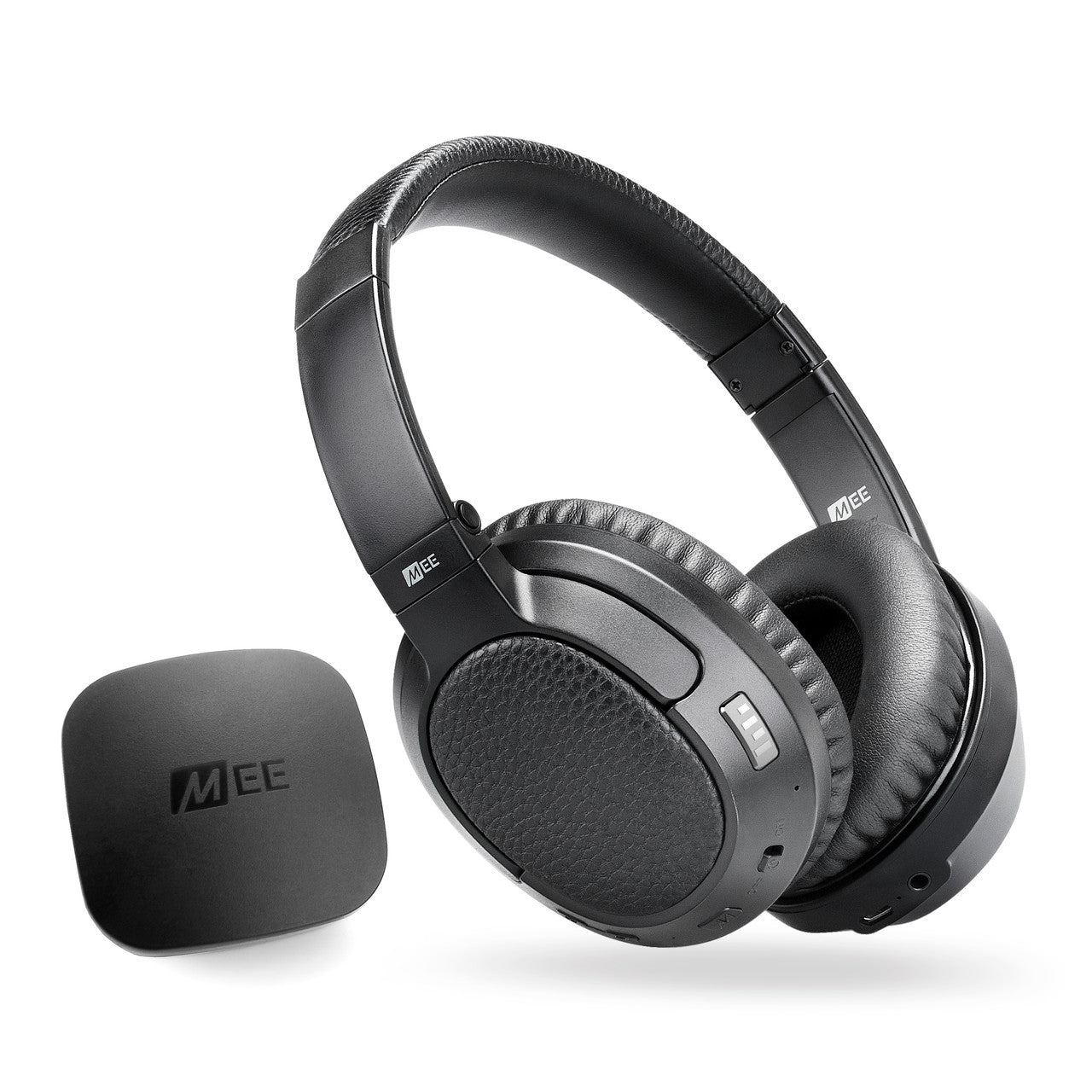
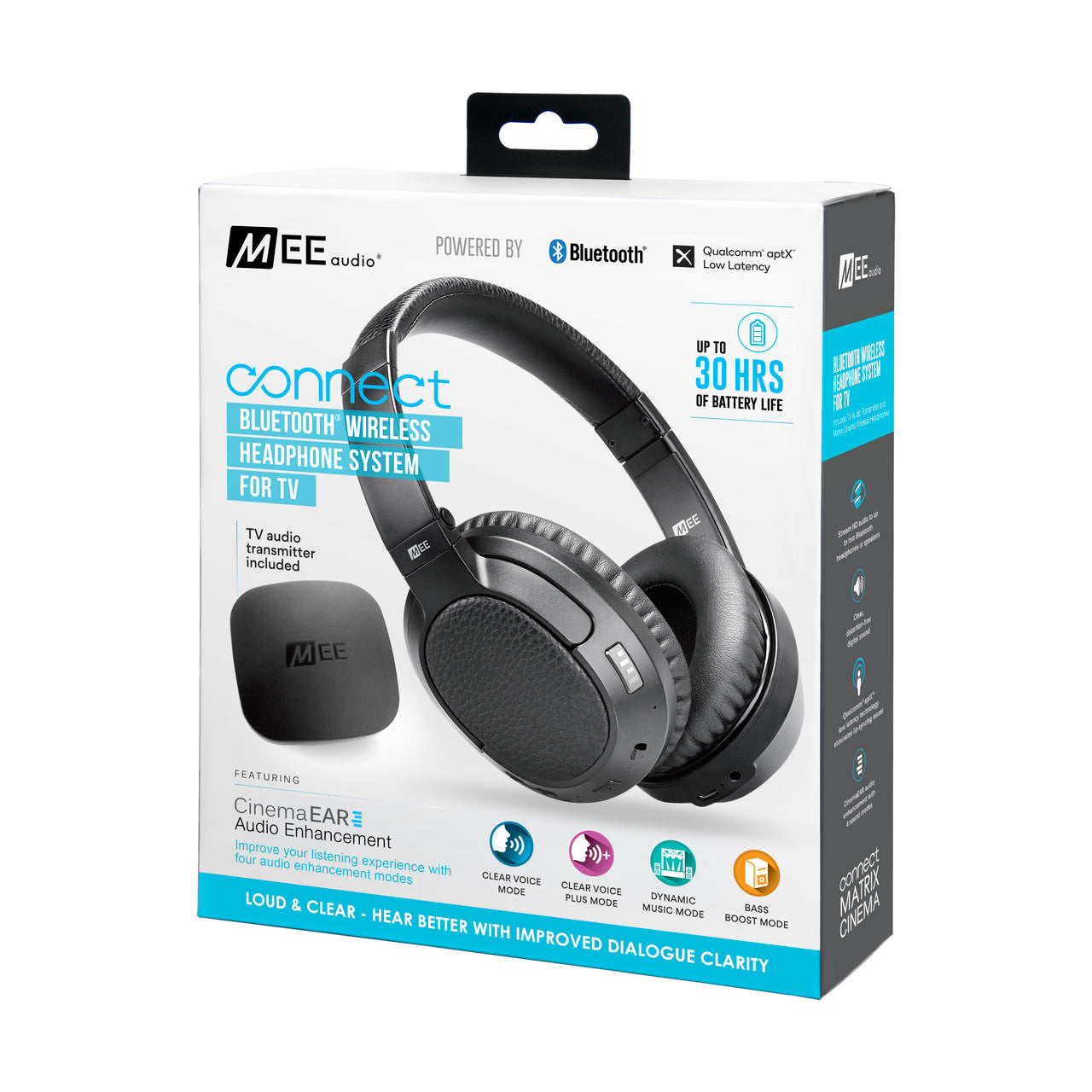
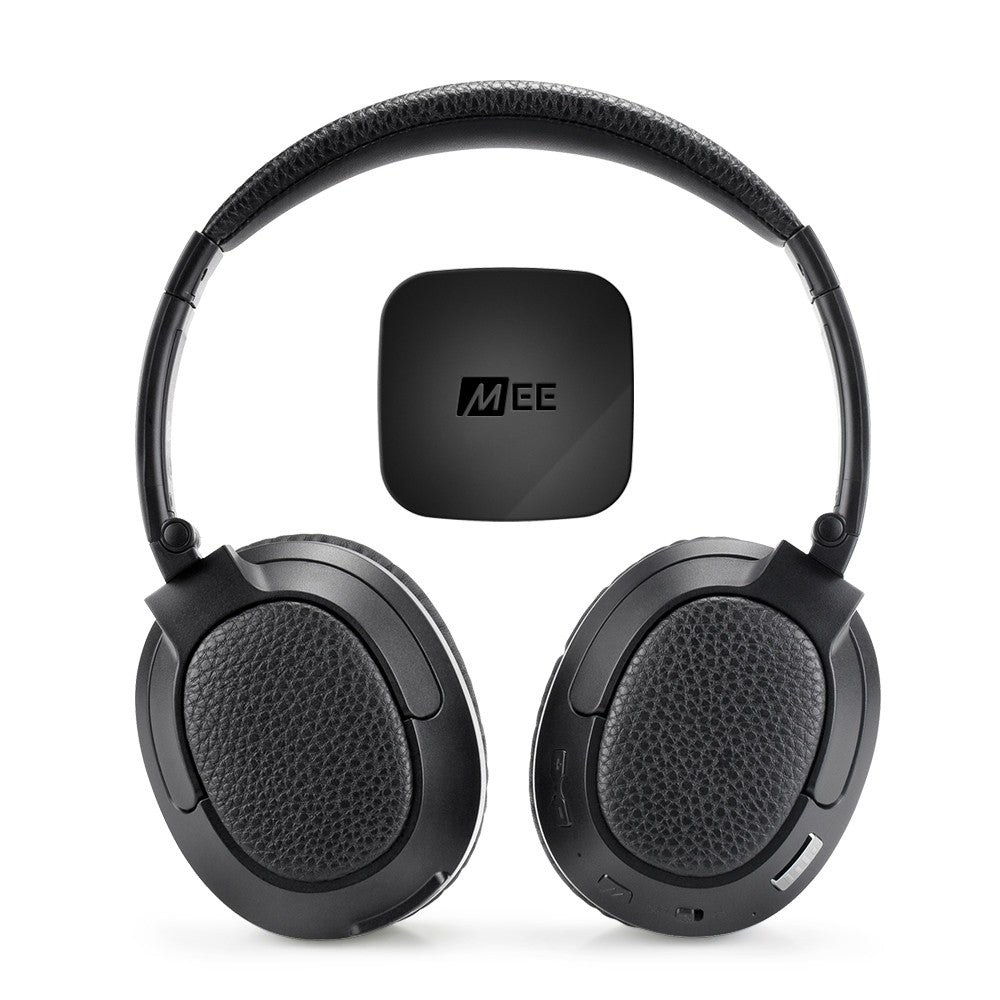
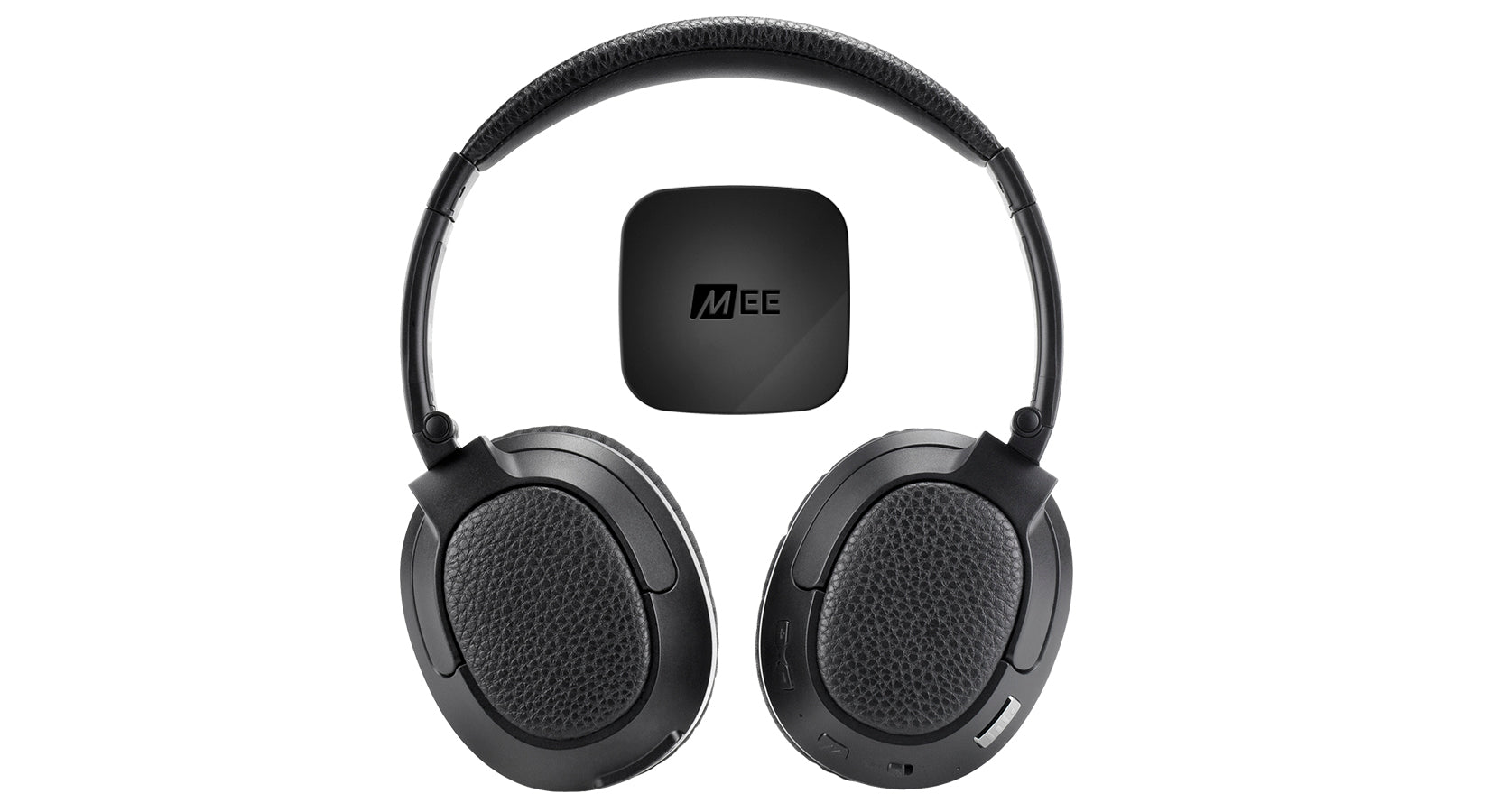
The Connect T1CMA Bluetooth wireless TV headphone system includes the Connect Bluetooth Audio Transmitter and Matrix Cinema Wireless Headphones and enables TVs and other devices to stream high-quality digital sound wirelessly with no lip-sync delay for the ultimate music and movie experience.
Couldn't load pickup availability
Pickup available at MEE audio Warehouse
We'll email you when your order is readyPairs well with
Answers to some common questions can be found below. If you need any additional assistance, please contact us and we’ll get back to you within 1 business day.
-
How long will my product take to ship?
We strive to ship most orders out within 1-2 business days. Most pickup orders are available for pickup in 1 business day. Made-to-order products require additional manufacturing time, which is noted on their respective product pages. For more information, visit our Shipping Info page.
-
I need help with a MEE audio product
Answers to most common questions can be found in our Setup Guides and FAQs. If you need a user manual for your MEE audio product, visit the User Manuals page.
-
I have a question about warranty & returns
All new, retail-packaged products purchased from MEE audio or authorized resellers carry a minimum of a 1-year manufacturer warranty. For more information, see our Warranty Policy. Purchases from MEEaudio.com can also be returned within 30 days in most cases. For more information and exceptions, see our Return & Refund Policy
-
I have a different question
Ask our team in one of the following ways:
- Use the 'Chat' button in the lower right hand corner
- Email support@meeaudio.com
- Call us at (626) 965-1008
We are open M-F 9am-5pm PST (except holidays)
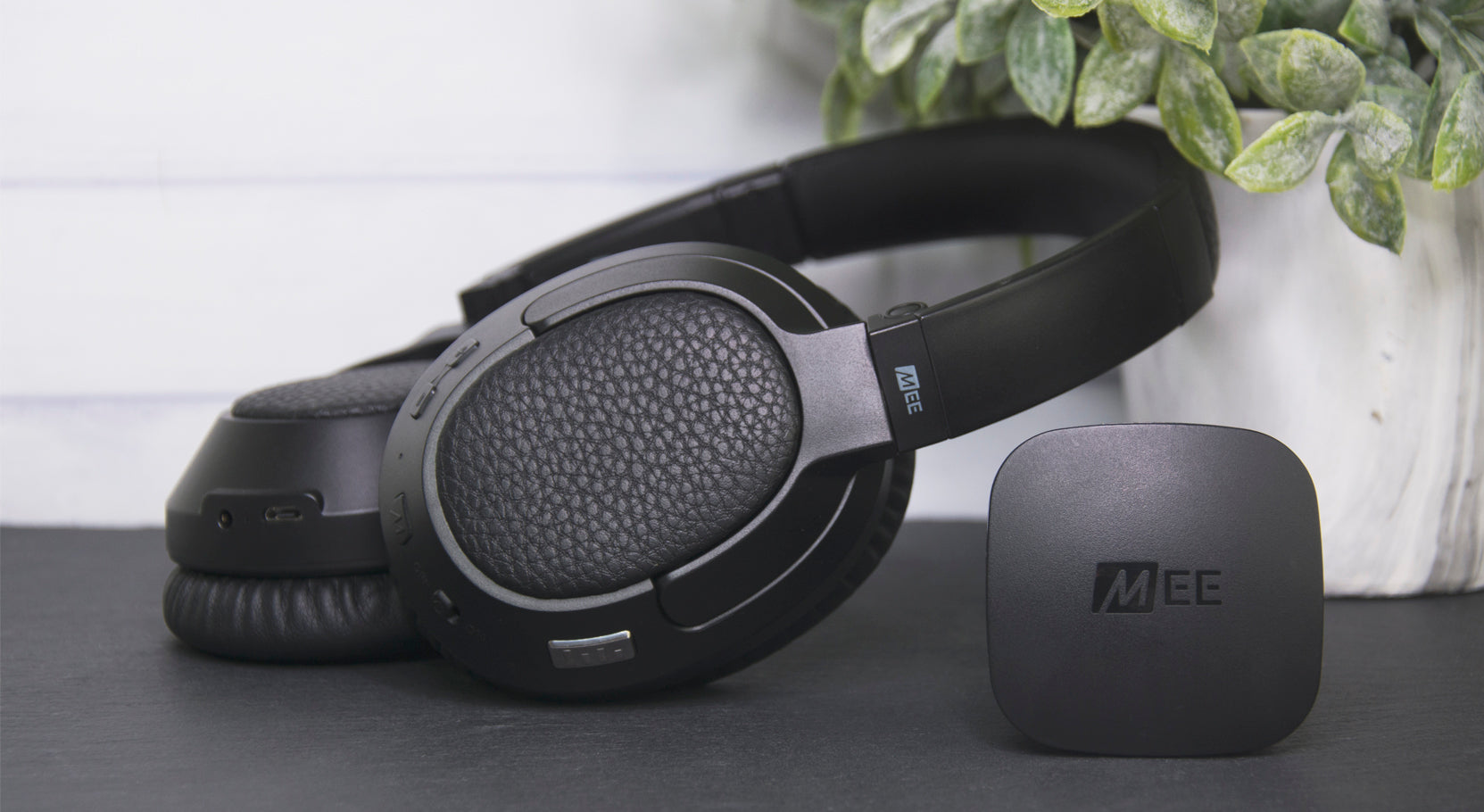
Connect Bluetooth Wireless Headphones System for TV
Includes Connect Bluetooth audio transmitter and Matrix Cinema wireless headphones, paired and ready for use right out of the box.
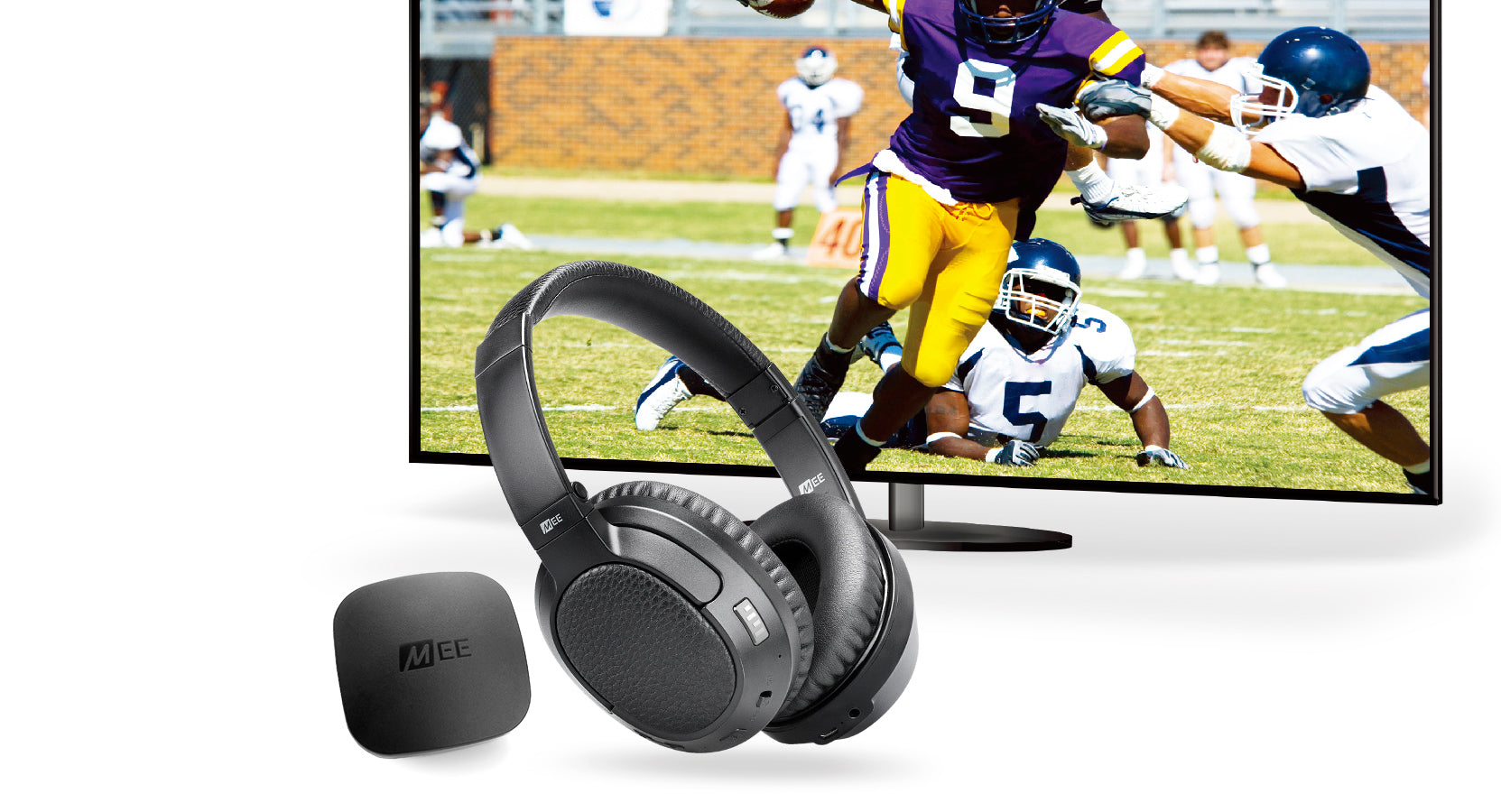
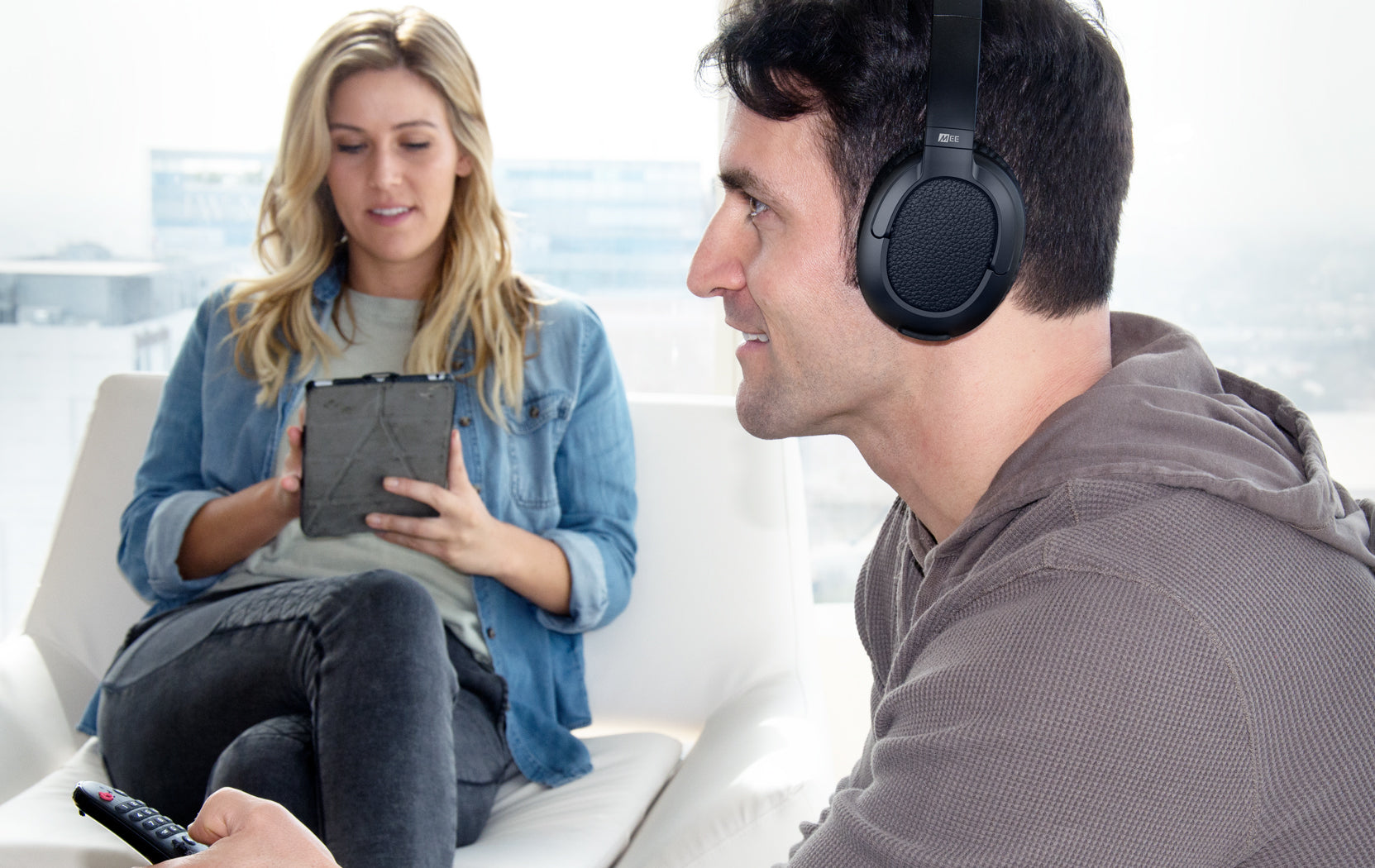
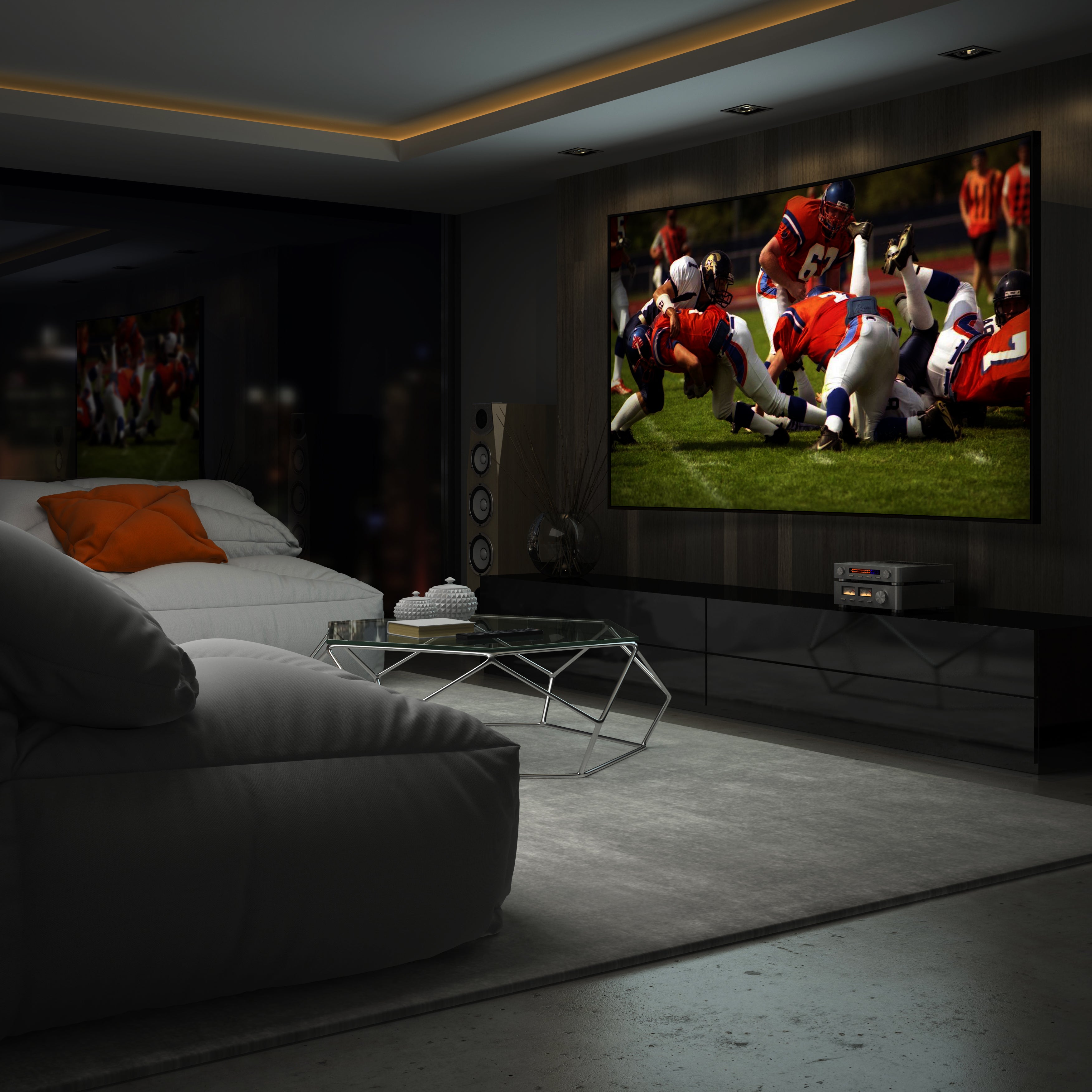
Listen to TV Audio Without Disrupting Others.
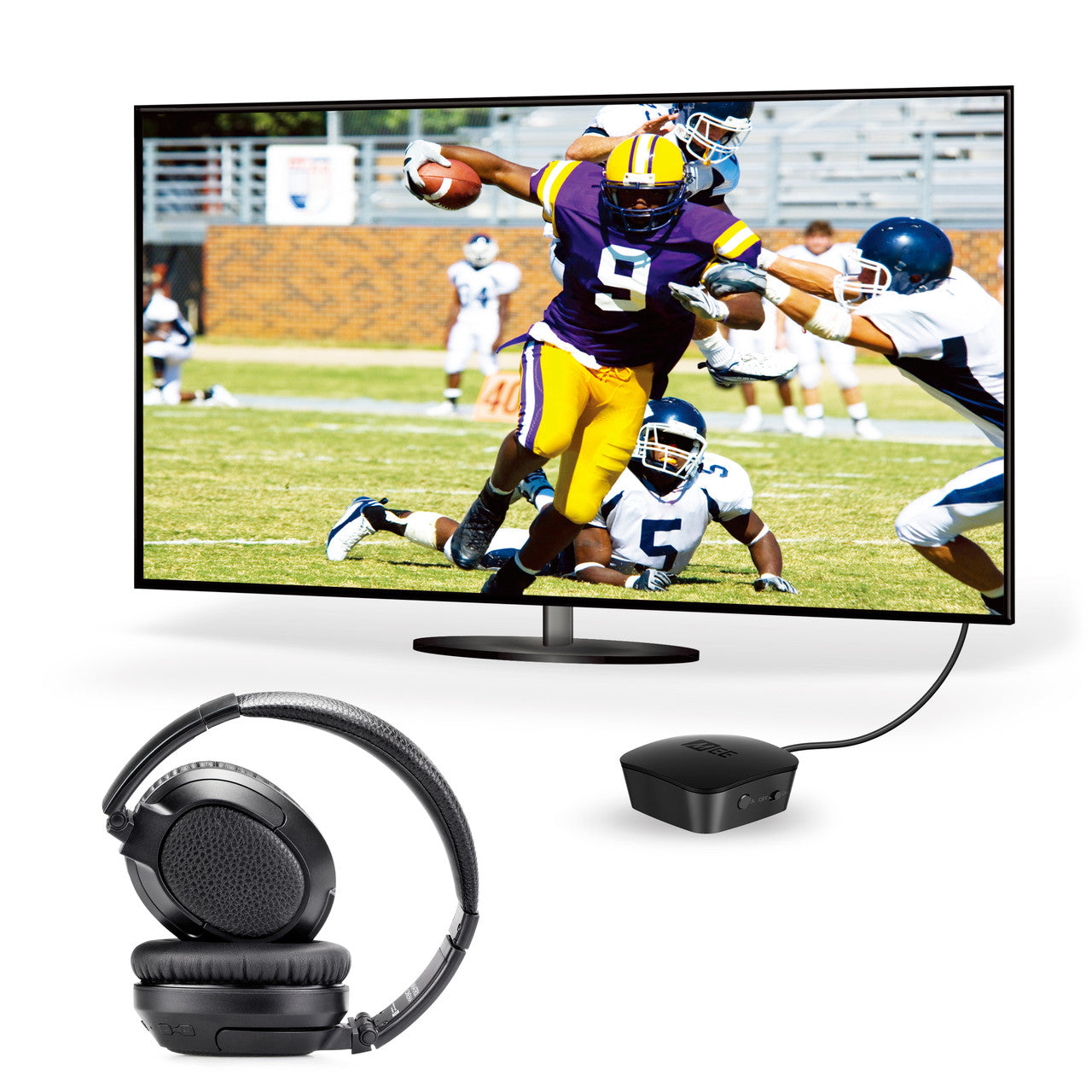
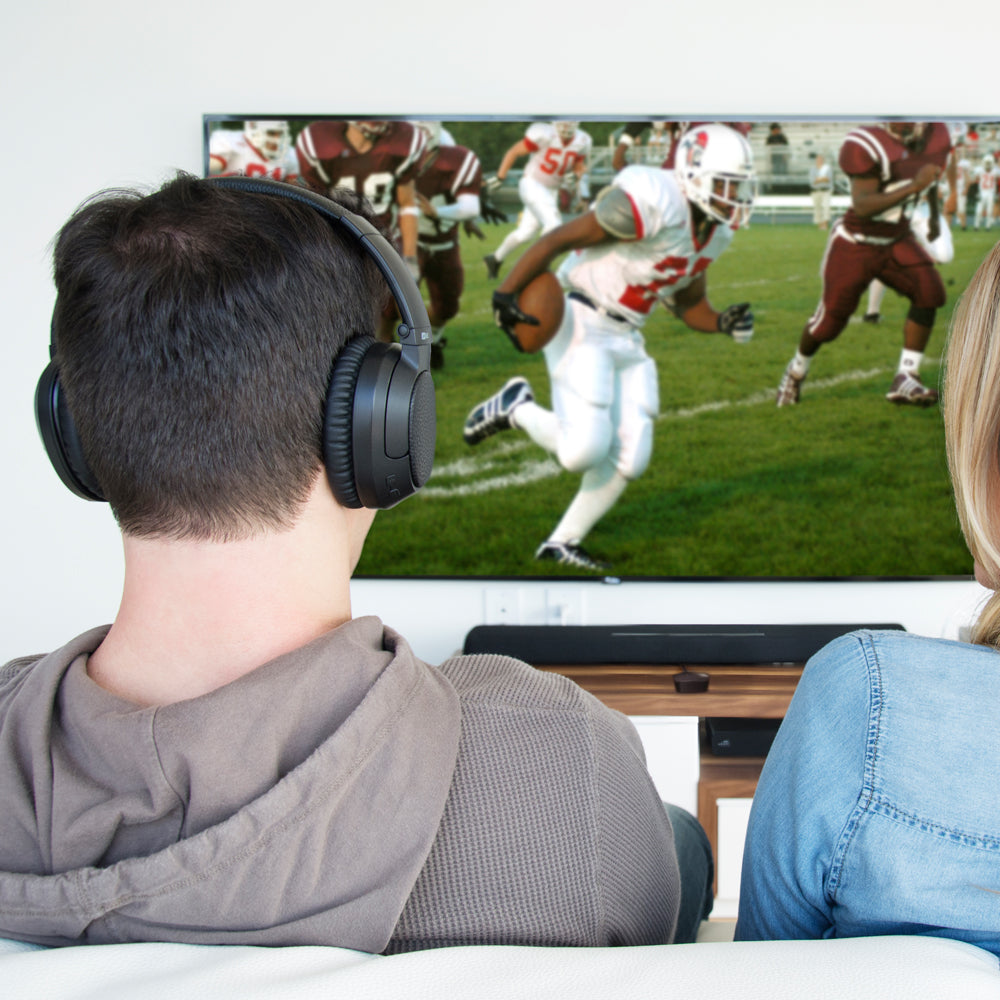
The Connect transmitter enables TVs and other devices to stream clear, distortion-free digital sound wirelessly to Bluetooth headphones or speakers. Enjoy your TV without bothering roommates, children, or other family members, or watch TV in bed without disturbing your significant other.
Powered by Bluetooth.
With Bluetooth wireless technology, the Connect transmits clear, distortion-free digital audio to Bluetooth headphones, speakers, and other receivers up to 30 feet away. There is no white noise, no need to “tune” for the right frequency, and no way for a stranger to listen in on your audio stream simply by having similar headphones.
Qualcomm aptX Low Latency technology
Lag-Free Audio
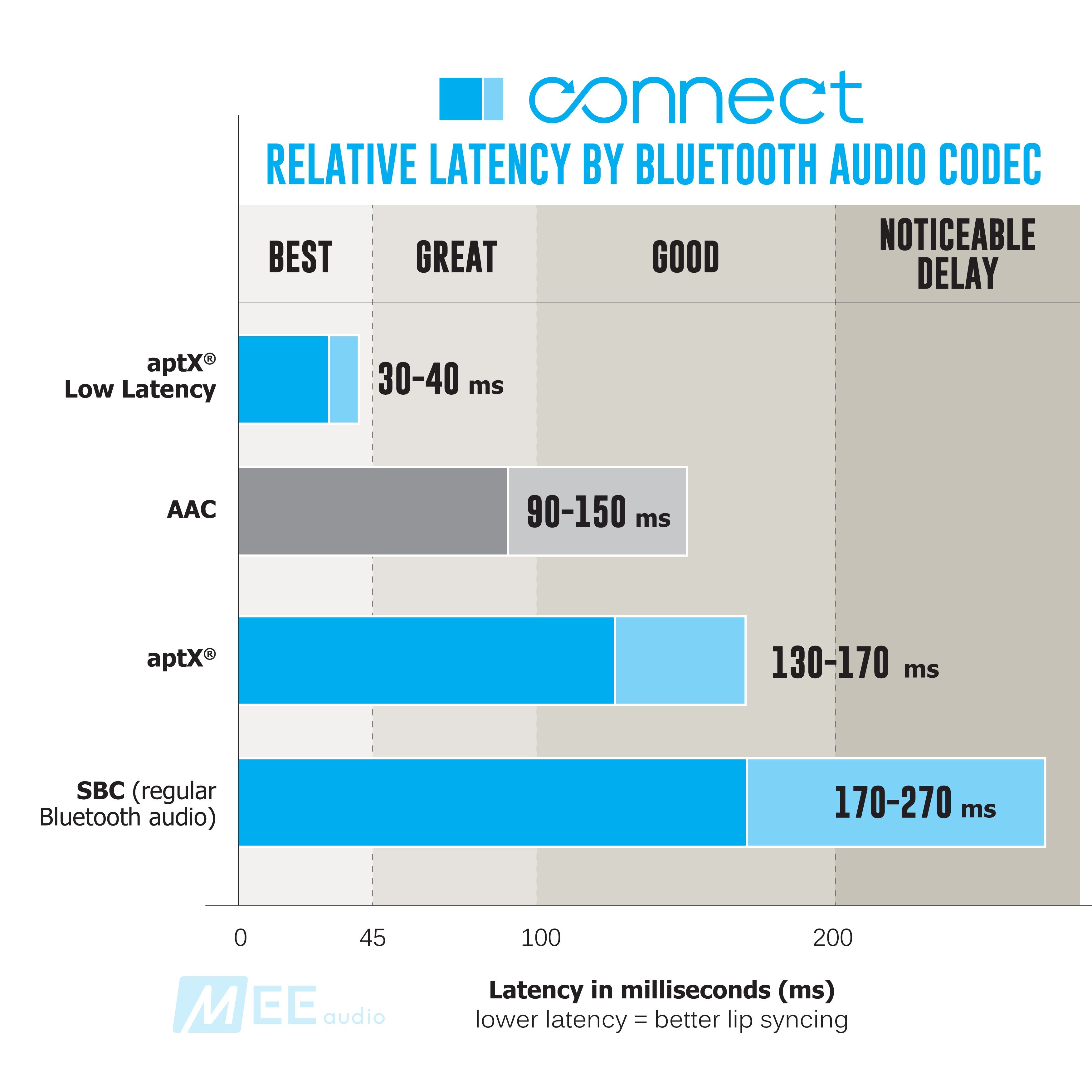
The Connect supports Qualcomm®aptX™and aptX™Low Latency Bluetooth audio codecs for high-fidelity, low latency audio with aptX-enabled headphones. aptX provides the highest possible wireless audio quality, delivering full-range sound with crystal clarity, while aptX Low Latency also minimizes audio delay and prevents lip-syncing issues.
Digital & Analog Connectivity.
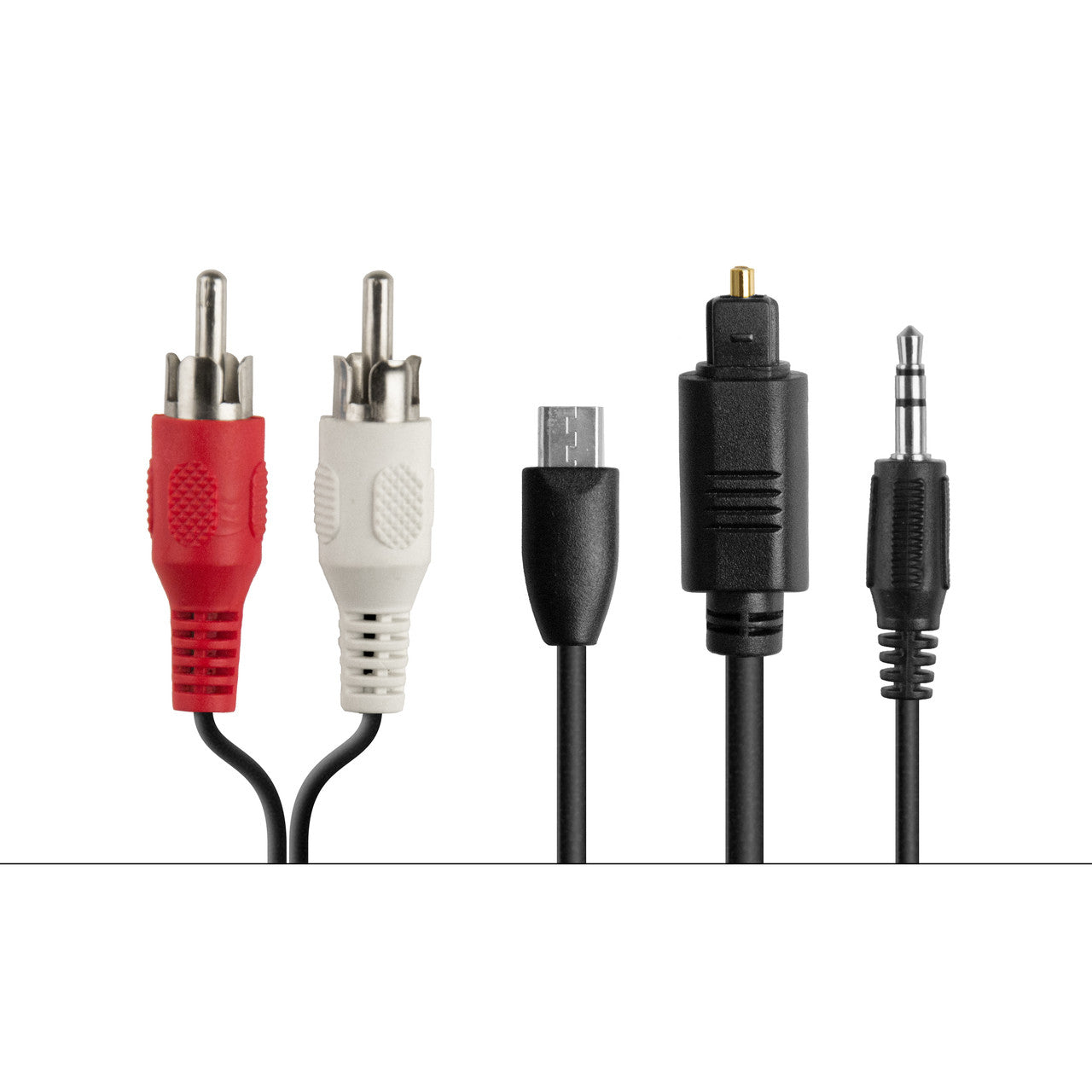
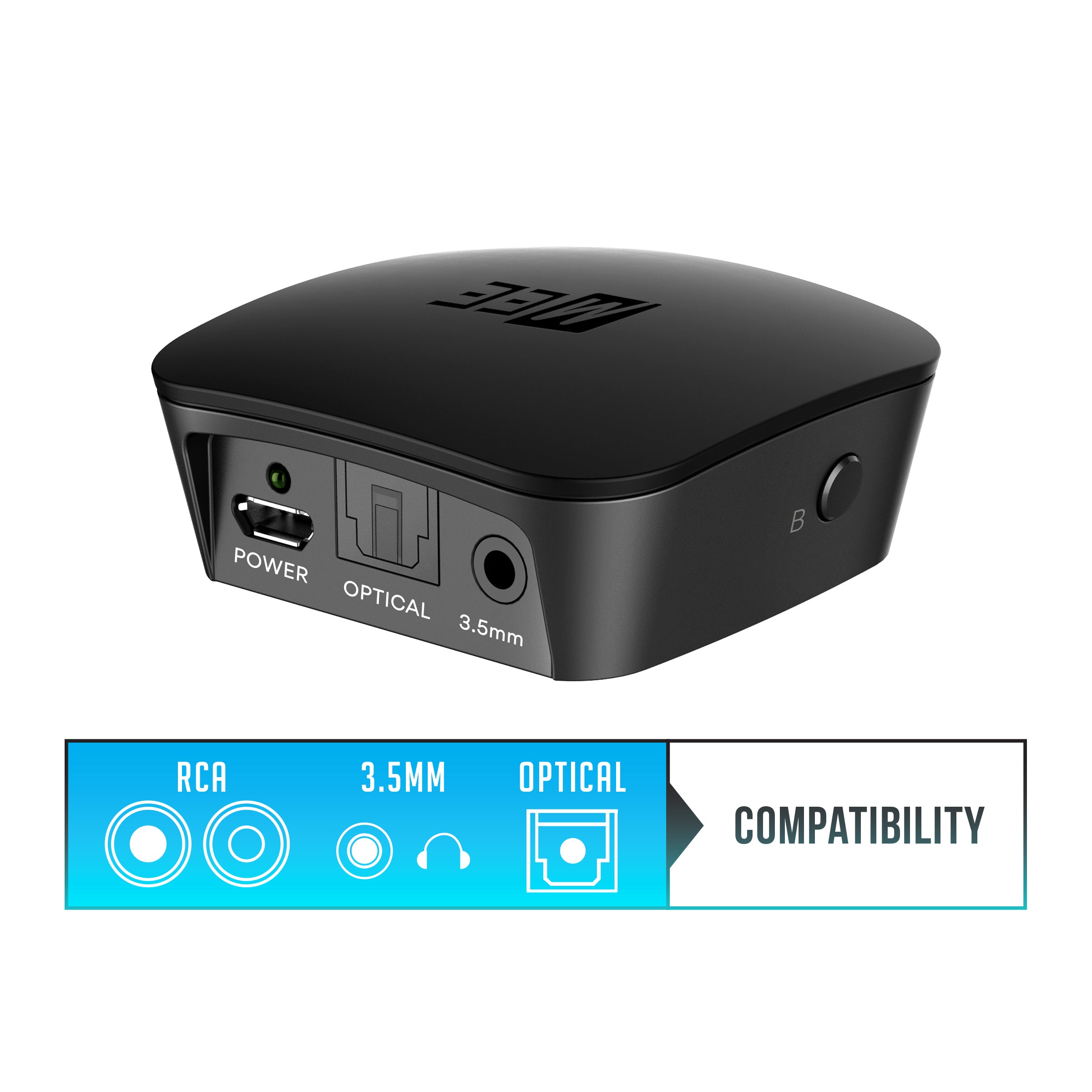
The Connect offers both analog and digital audio inputs for the widest compatibility with old and new TVs, as well as any other devices with optical (TOSLINK S/PDIF), RCA, or 3.5mm stereo audio output - computers, tablets, digital streaming boxes (including Apple TV and Amazon Fire TV), and more.
- All cables are included
3 Ways to Connect Your TV
Bluetooth Transmitter for Any 3.5mm Headphone/Audio Output
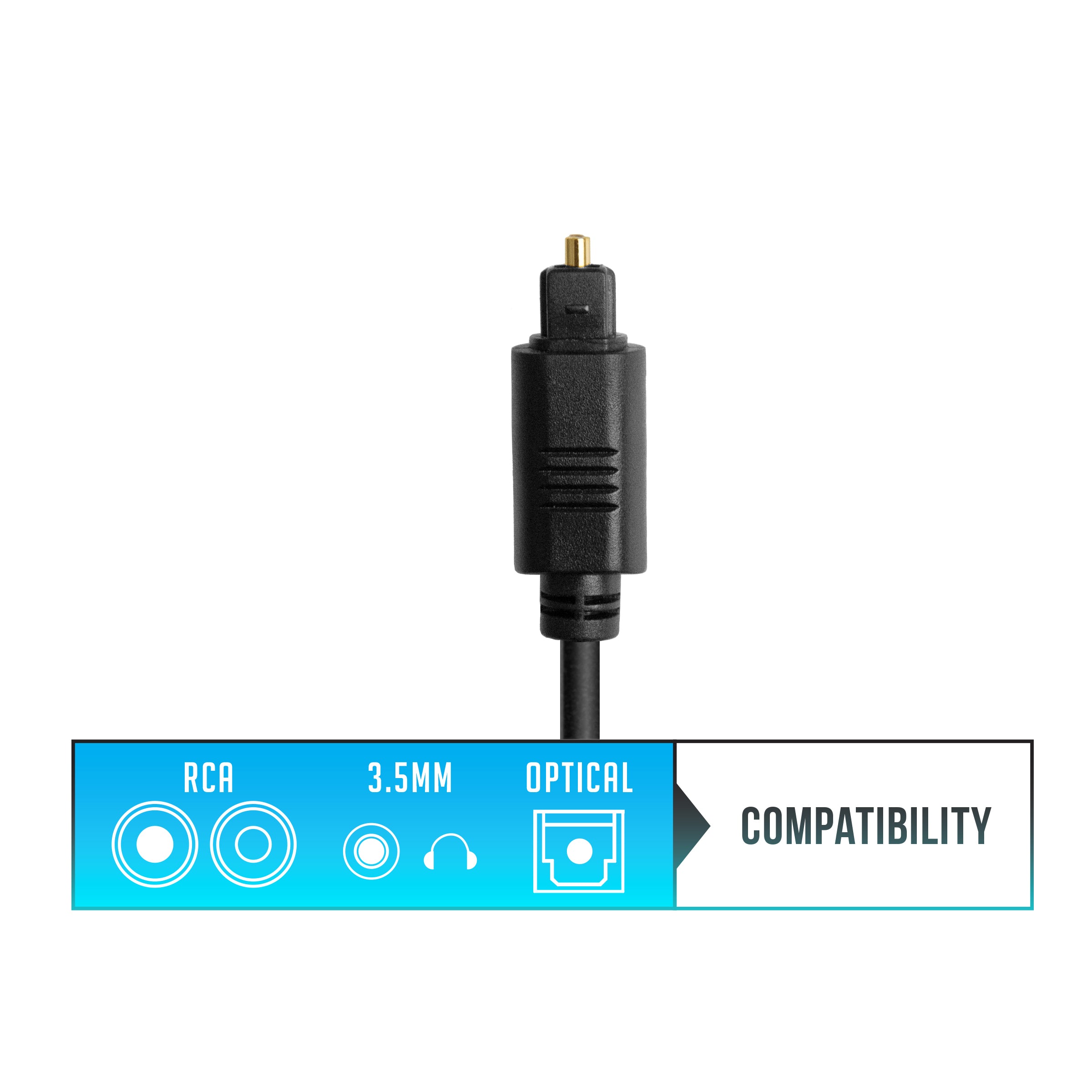
Option 1: Optical Toslink
Digital connectivity for newer TVs
Device will not convert Dolby/surround sound signal. Change Audio Output Format to PCM in TV audio settings menu
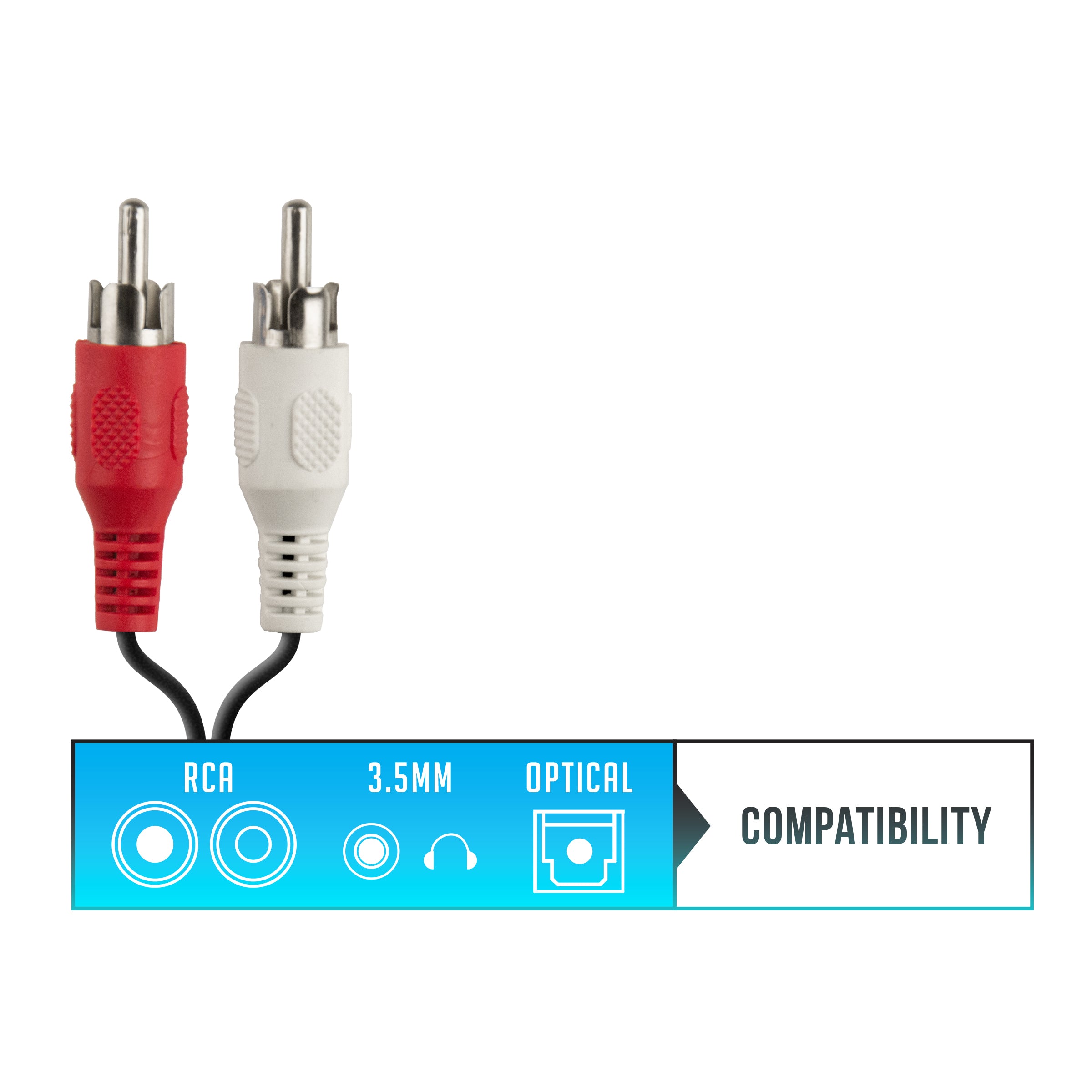
Option 2: RCA Audio Output
Analog connectivity for older TVs
Please only use red/white RCA plugs labeled on your TV "Audio Output" or "Output"
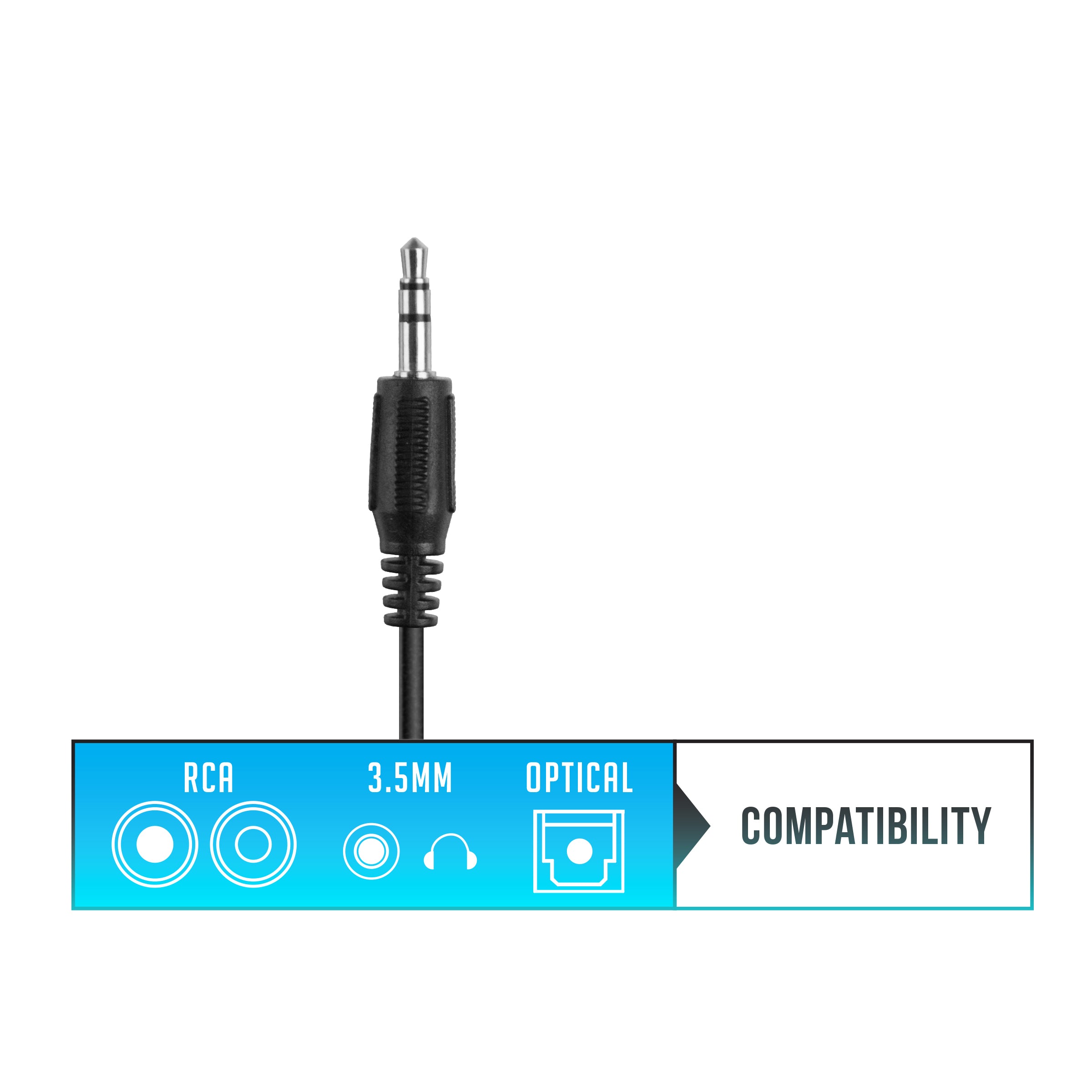
Option 3: 3.5mm Headphone Jack
Easiest connection method for all devices
Use with any jack labeled "Headphone", "Audio Out", or with a headphone symbol
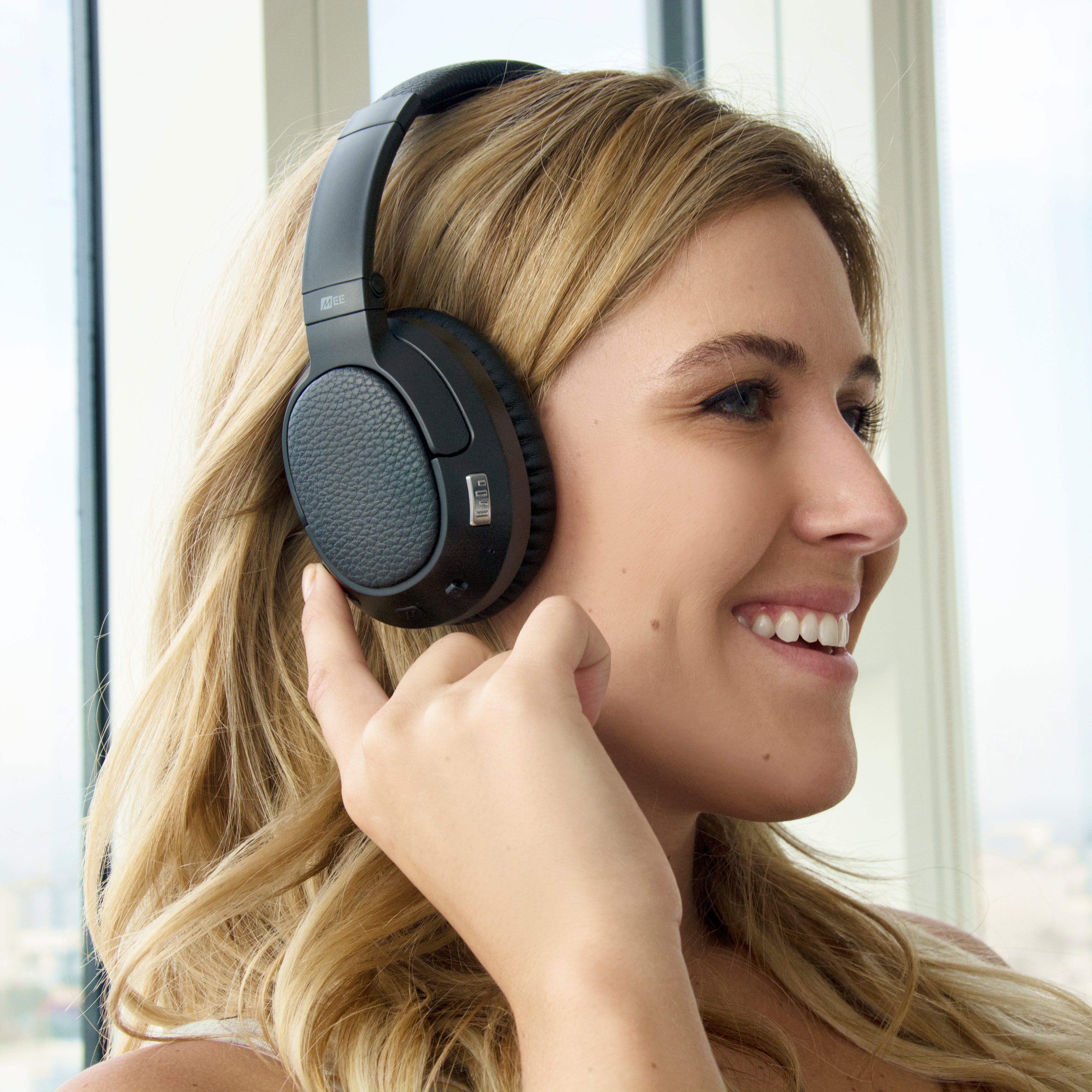
Wireless Headphones Included
Included high-definition Matrix Cinema Bluetooth headphones are paired and ready for use right out of the box and feature a lightweight, over-the-ear fit with ultra-soft memory foam padding for all-day comfort, as well as a built-in headset for use with phones and tablets.
All-day Battery Life.
Connect transmitter can be left plugged in to avoid recharging, while the Matrix Cinema headphones feature a built-in rechargeable battery offering up to 30 hours of use on a single charge.
Ultra-efficient Bluetooth 5.0 chipset provides up to 30 hours of talk time and 28 hours of media playback.
No Distractions
The Matrix Cinema's voice prompts and status notification lights can be disabled for uninterrupted viewing in low-light environments.
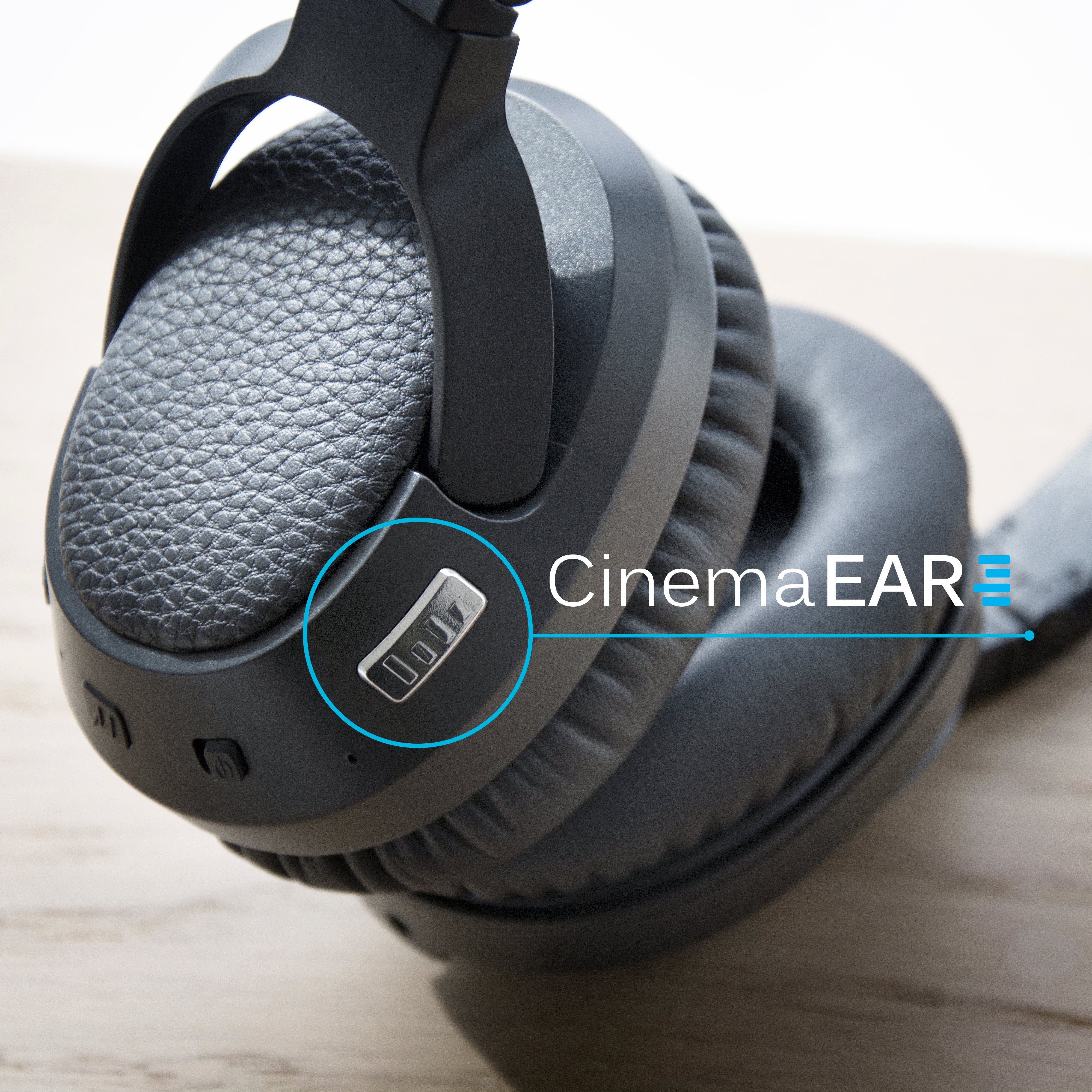
Introducing CinemaEAR.
CinemaEAR is an advanced audio enhancement feature on the Matrix Cinema headphones that lets you switch between four different sound enhancement profiles at the touch of a button to tailor your listening experience to your media. CinemaEAR works with all Bluetooth devices to improve audio in movies, TV programs, sportscasts, audiobooks, and music.
Amplify Your TV
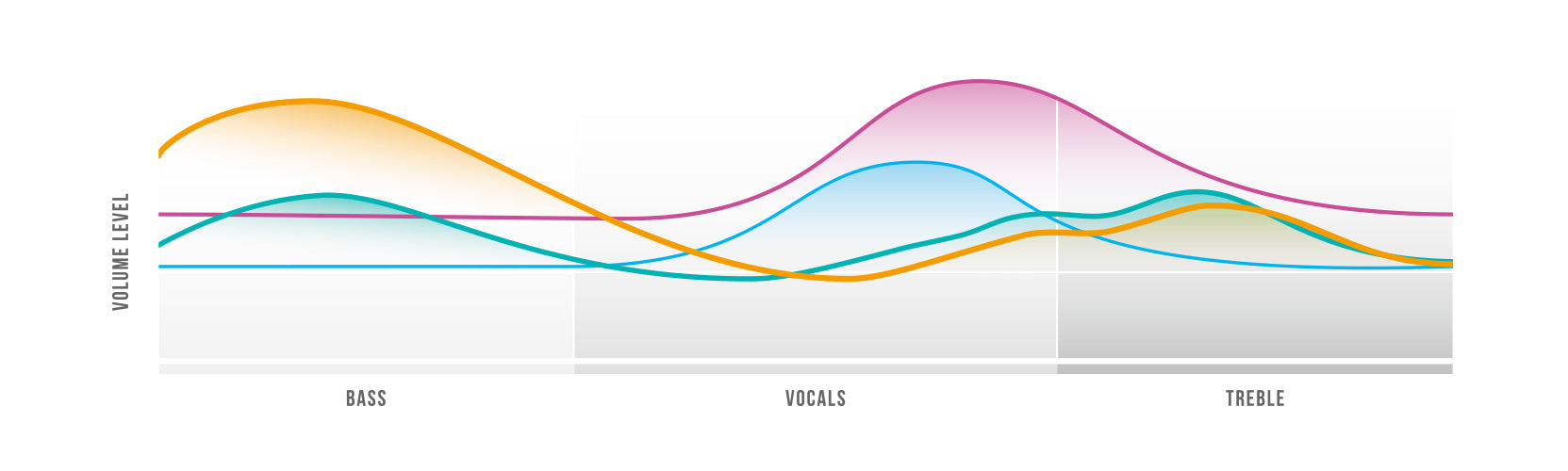
Hear dialogue more clearly with the push of a button – two pre-set "Clear Voice" modes improve clarity and speech intelligibility, making dialogue easier to understand in movies, TV shows, and sportscasts.
Clear Voice Mode
Boosts speech clarity to make dialogue in movies and TV programs easier to hear over background sounds
Clear Voice Plus Mode
Additional enhancement to provide a greater boost in speech clarity and intelligibility

Dynamic Music Mode
Improves bass and treble response to make music sound more lively and exciting

Bass Boost Mode
Enhances bass response and depth to create more impact and immersion with movies and music
Bluetooth Audio for Two
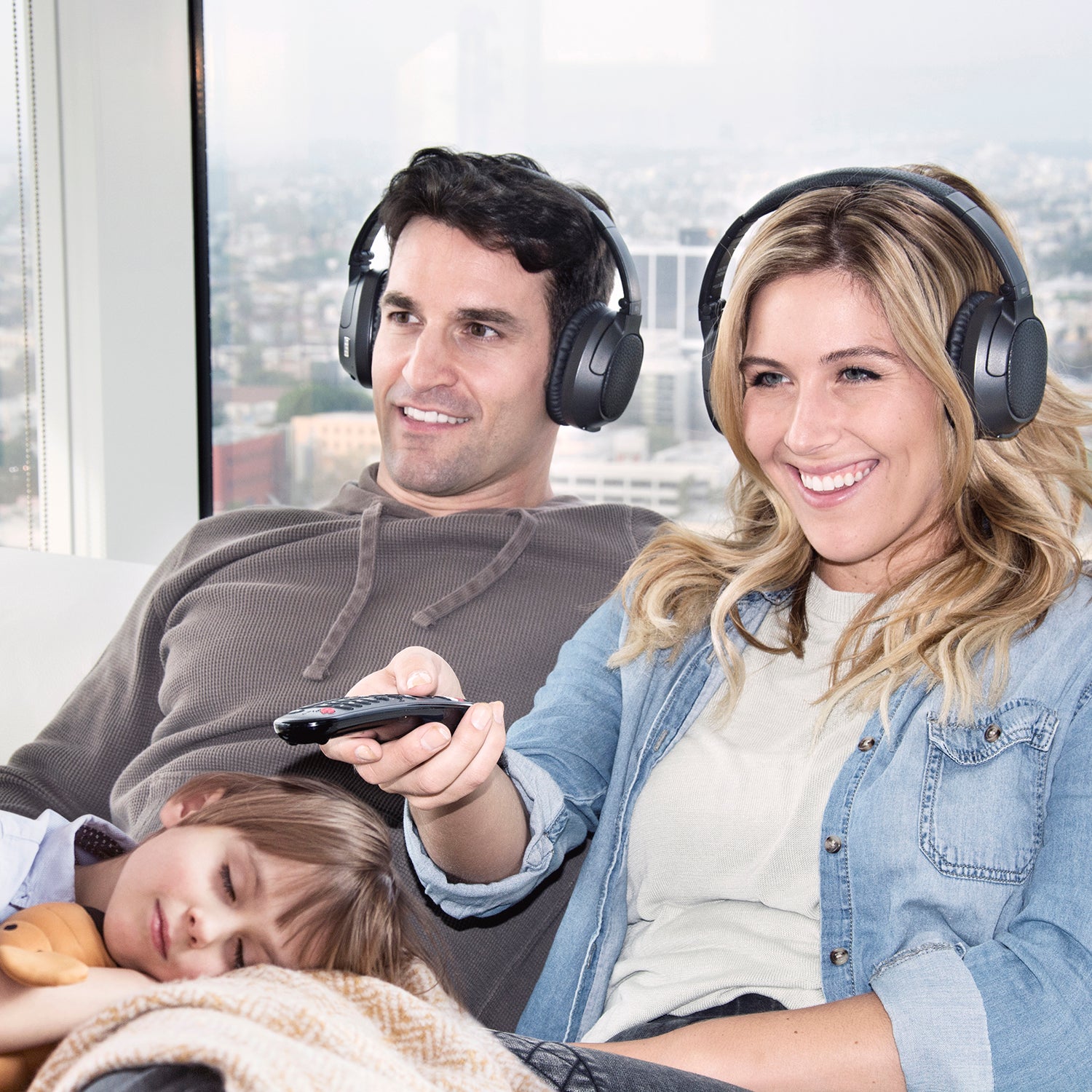
Dual-Headphone Streaming
Add another Bluetooth headphone or speaker and stream audio to both simultaneously*.
Volume levels for each connected device can be adjusted independently, allowing each listener to turn the volume as loud as they like without bothering each other or those around them.
*Additional Bluetooth headphones and Bluetooth speakers sold separately.
An additional MEE audio Matrix Cinema headphones can also be purchased separately.
How It Works
- Plug the USB power cable to a power source (TV or wall adapter) and to the Connect
- Turn on the Connect Transmitter
- Turn on the Matrix Cinema headphones
- Matrix Cinema headphones will automatically pair to the Connect Transmitter
- Choose ONLY ONE audio cable supported by your TV
- Plug the audio cable into the Connect transmitter and into the TV
Optional: If you don't hear audio from your Bluetooth headphones, follow the instructions in the Connect user manual to adjust the appropriate audio settings on your TV.
Use the volume control on your headphones to adjust volume
Tech Specs
Connect Transmitter
Bluetooth Version
– Bluetooth 4.0
Bluetooth Profiles Supported
– A2DP
Bluetooth Codecs
– SBC, Qualcomm® aptX™, Qualcomm® aptX™ Low Latency
Operating Range
– up to 30 ft (10 m)
Number of Headphones Supported
– 1 to 2
Battery Type
– built-in rechargeable batteries
Battery Capacity
– 200 mAh
Play Time
– 12 hours (1 headphones) / 9 hours (2 headphones)
Charging Time
– 1.5 hours
Charging Port
– micro-USB
Audio Inputs
– 3.5 mm; optical TOSLINK
Dimensions
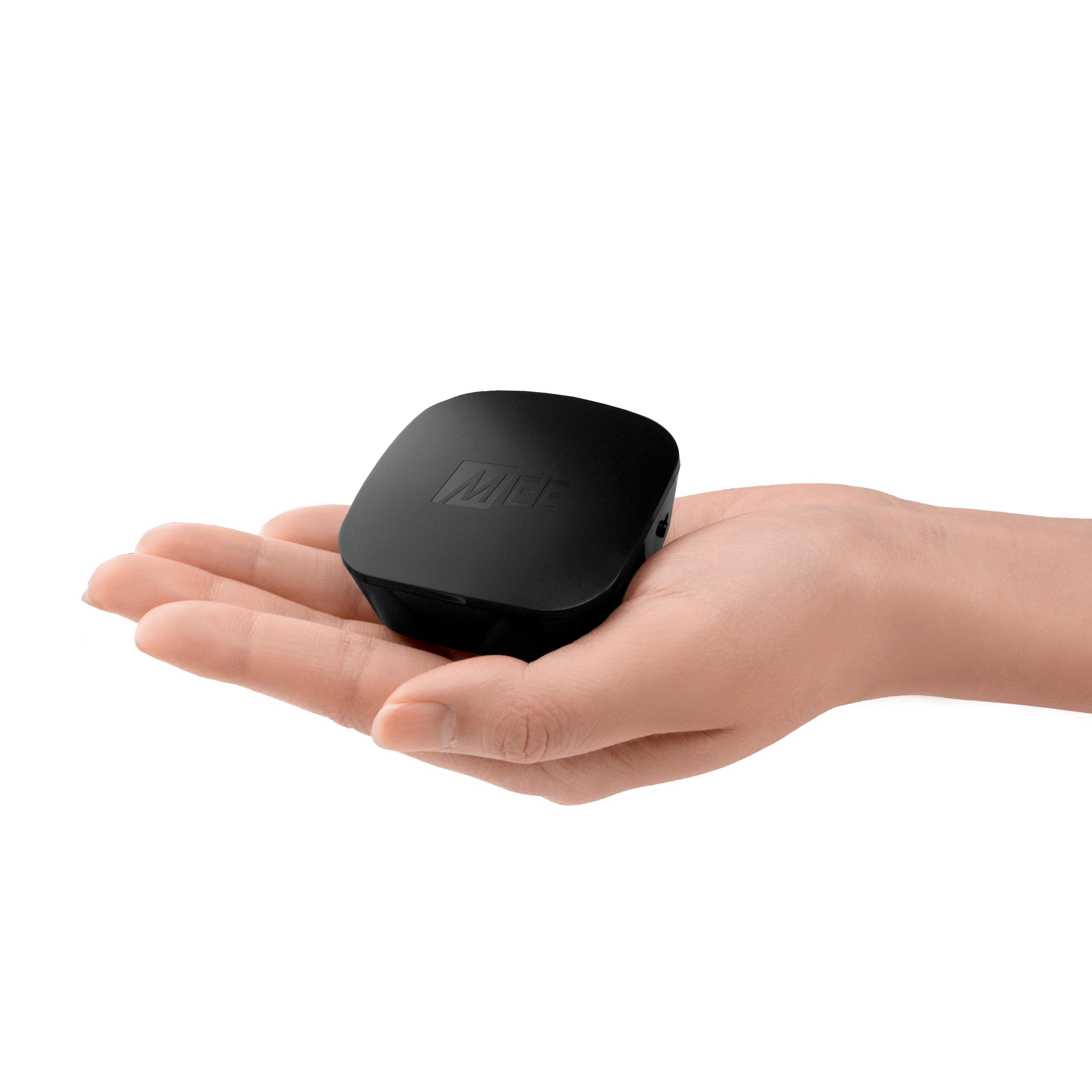
– 2.2 x 2.2 x 1 inches (5.5 x 5.5 x 2.5 cm)
Weight
– 1.1 oz (31 g)
Matrix Cinema Headphones
Driver Size
– 40 mm
Frequency Response
– 20 Hz to 20 kHz
Impedance
– 32 Ohms at 1 kHz
Operating Range
– up to 30 ft (10 m)
Sensitivity
– 115±5 dB (1 mW at 1 kHz)
Bluetooth Version
– Bluetooth 5.0
Bluetooth Profiles Supported
– A2DP 1.2, HSP 1.2, HFP 1.5, AVRCP 1.4
Bluetooth Codecs
– SBC, Qualcomm® aptX™, Qualcomm® aptX™ Low Latency
Operating Range
– up to 30 ft (10 m)
Multipoint Supported
– Yes
Battery Type
– built-in rechargeable batteries Li-ion polymer
Battery Capacity
– 400mAh
Music Playback Time
– 28 hours
Talk Time
– 30 hours
Charging Time
– 2 hours
Charging Port
– micro-USB
Ear Coupling
– circumaural (over-ear)
Cable Length
– 4.6 feet (1.4 m)
Cable Connector
– 3.5 mm
Dimensions
– 8 x 6.5 x 2 inches (20 x 17 x 5 cm)
Weight
– 7.9 oz (225 g)
Support
T1CMA Product Manual
For information on troubleshooting, pairing, connecting, maintenance, and more please refer to the T1CMA user manual.
To view the manual in pdf format click here.
To save it to your computer, right click the link and select "Save Link As...".
Connect Product Manual
For additional information on troubleshooting, pairing, connecting, maintenance, and more please refer to the Connect user manual.
To view the manual in pdf format click here.
To save it to your computer, right click the link and select "Save Link As...".
Matrix Cinema Product Manual
For additional information on troubleshooting, pairing, connecting, maintenance, and more please refer to the Matrix Cinema user manual.
To view the manual in pdf format click here.
To save it to your computer, right click the link and select "Save Link As...".
Included in the Box

Connect Transmitter

Matrix Cinema Headphones

Digital Optical S/PDIF Audio Cable

3.5 mm Audio Cable

RCA Audio Cable

2x Micro-USB Power Cable

Quick Start Guide


Connect T1CMA Setup Guide
Watch our setup guide in the video below which demonstrates how easy it is to set up your Connect
Setup Guide Transcript
TITLE SLIDE:
(music begins) MEE audio Logo
[Fade in to the MEE audio Connect Bluetooth Audio Transmitter and the Matrix Cinema Bluetooth Headphones on a table]
TITLE SLIDE: CONNECT BLUETOOTH WIRELESS HEADPHONE SYSTEM FOR TV
NARRATOR:
Thank you for your purchase of the MEE audio Connect Transmitter and Headphone Combo.
[Cut to closeup of Connect transmitter connected to a TV. Zoom out to show a long shot of the setup]
In this video, I'll help you set up the CONNECT to work with your TV.
[Pan to closeup of the Connect Transmitter and Headphone Combo with two USB charging cables]
We'll start by charging both the transmitter and the headphones.
[Fade in to a hand plugging one end of a USB power cable into a laptop. Cut to a hand plugging one end of a USB power cable into a TV]
Plug the USB power cables to a power source.
You can use a computer USB port, wall adapter, or the USB port on your TV.
[Cut back to the MEE audio Connect Transmitter and Headphone Combo and show a hand plugging the USB charging cable into the charging port on the back of the Connect transmitter. The green light blinking on the back of the CONNECT transmitter indicates charging. The hand will then plug the second USB charging cable into the charging port of the headphone]
If you're using a USB port on your TV, be aware that most TVs do not have power while turned off so your CONNECT may run out of battery if you don't use your TV for a while.
Not a huge deal - you'll just need to wait a couple of minutes for it to charge the next time you turn your TV back on.
[Fade to closeup of the Connect Transmitter plugged in and the Matrix Cinema Headphone next to it. A hand slides the power switch from OFF to ON on the transmitter. Cut to the hand sliding the power switch from OFF to ON on the headphone. A blue light will appear on the Connect transmitter to indicate successful pairing]
Once the CONNECT is plugged into power, go ahead and slide the power switch on.
Next, slide the switch on your headphones to the ON position.
The transmitter and headphones are already paired and ready to use.
They will connect automatically when powered on, as indicated by the solid blue light on the transmitter.
If you see a solid blue light, go ahead and fast-forward to the 2:00 minute mark of this video.
TITLE SLIDE: (Optional) Pairing a new headphone
NARRATOR:
If no solid blue light appears or if you would like to pair a second headphone, we'll need to pair your headphones.
[Fade to a hand showing the Bluetooth pairing process on a headphone]
To put the Matrix Cinema into pairing mode, turn the power switch to the ON position.
Then press and hold the multi-function button for five seconds until the light blinks red and blue and the headphones indicate that they are ready to pair.
[Show a second headphone's Bluetooth pairing process]
For most other headphones, press and hold the power button for about five to ten seconds.
The pairing process can vary depending on brand and model.
If you can't figure out how to put your headphones into pairing mode, please consult their user manual or contact the manufacturer of the headphones.
[Cut to the pairing process for the Connect transmitter to a Bluetooth headphone]
Once your headphones are in pairing mode, put the CONNECT into pairing mode by clicking the 'A' button or 'B' button if it's your second headphone.
A blinking blue light will indicate that it is ready to pair.
The CONNECT and Bluetooth headphones must be in pairing mode at the same time in order to pair.
[Cut back to a paired Connect Transmitter and Headphone Combo]
The blinking blue light will change to a solid blue light once successfully paired.
TITLE SLIDE: Choose ONLY ONE audio cable supported by your TV
NARRATOR:
Now, let's determine which audio cable to use with your TV.
[Fade in to the Connect transmitter with three audio cables on a table: Digital Optical, Headphone Jack, and RCA]
What we're looking for is the TV's audio output.
[Cut to two examples of where to find TV ports and highlight the different port options]
There are three ways to hook up the CONNECT: Optical, headphone jack or RCA.
You can consult your TV's user manual to see the available options or look at the back of your TV.
If you're not able to locate the audio output, contact the manufacturer of your TV.
[Cut back to the three audio cables on a table]
You only need to hook up one of these audio cables, so as soon as you hear sound, you can skip to the end of the video to learn how to turn off your CONNECT.
TITLE SLIDE: Option 1: Using the optical cable
[Fade in to a TV panel with the Digital Audio Out (Optical) highlighted. Cut and pan over the optical cable with the CONNECT transmitter]
NARRATOR:
If your TV has a jack labeled 'Digital Audio Out Optical', you can use the optical cable.
[Show a hand removing the plastic caps from the optical cable. Cut to a hand plugging one end of the optical cable to a TV port]
The first step is to remove the plastic caps from the optical cable and plug it into the TV and CONNECT transmitter.
[Cut to the back of the Connect transmitter and a hand plugging in the optical cable into its optical port]
The optical port on the CONNECT is covered by a door.
The door does not need to be removed, it will move out of the way when you plug in the cable.
When plugging the cable into the CONNECT, you should feel it click into place.
If it's not clicking into place, rotate the cable and try it again until it does.
[Cut to the TV port with the optical cable and then cut to a hand testing the volume on the Bluetooth headphones. A solid blue light is shown on the Connect transmitter to indicate successful pairing]
Once the optical cable is plugged into the CONNECT and your TV, raise the volume on your headphones and check for sound.
If you're getting sound, then you're good to go.
[Cut to TV. Then cut to opening the menu settings in the TV and showing switching of the menu process]
If you're not getting sound, we'll need to adjust some of your TV settings.
These settings can be located in the Audio menu or in the Expert, Advanced, or Additional Settings menu depending on your TV.
We'll need to change your Audio Output to Optical and then change your Audio Output Format to PCM.
If you can't locate these settings or you're still not getting sound,
please�contact the TV manufacturer and ask them how to switch your Optical Audio Out to PCM mode.
[Cut back to the Bluetooth headphones and a solid blue light shown on the Connect transmitter to indicate successful pairing]
Once the CONNECT is connected and you're getting sound, you can control the volume using your Bluetooth headphone.
TITLE SLIDE: If you're hearing sound, you're all set!
TITLE SLIDE: Option 2: Using the headphone jack
[Cut to the TV panel with the headphone jack port highlighted. Cut to the 3.5 mm audio cable being shown with the Connect transmitter on a table]
NARRATOR:
If your TV does not have the optical port and has a headphone jack usually labeled 'Headphones', 'Phones', or with a headphone symbol, you can use the 3.5 mm audio cable.
[Cut back to the TV panel with the headphone jack port highlighted]
It will not work in a port that's labeled 'Repair', 'Support', or 'Mic'.
[Cut to the back of the Connect transmitter and a hand plugging in the 3.5 mm audio cable into its headphone jack port. Then cut to a hand plugging the other end of the 3.5 mm audio cable to the TV's headphone jack port]
Simply plug in the audio cable into the rightmost port of the CONNECT and then into the headphone jack port of your TV.
[Cut to a hand controlling the volume on a remote in front of a TV. Fade back to the audio cable plugged into the TV]
Most TVs will automatically mute your TV speakers while using the headphone jack.
[Fade back to the hand controlling the volume on a remote in front of a TV. Cut to a hand controlling the volume on the Bluetooth headphone]
Once the cable is plugged in securely, turn up the volume on both the TV and your headphones.
[Cut to a hand testing the volume on the Bluetooth headphones. A solid blue light is shown on the Connect transmitter to indicate successful pairing. Cut back to the Bluetooth headphones and a solid blue light shown on the Connect transmitter to indicate successful pairing]
The CONNECT volume can be controlled using your TV remote and your headphones.
TITLE SLIDE: If you're hearing sound, you're all set!
TITLE SLIDE: Option 3: Using the RCA cable
[Cut to the TV panel with the headphone Audio Out ports highlighted. Cut to the RCA cable being shown with the Connect transmitter on a table]
NARRATOR:
If your TV does not have an optical port or headphone jack, but has red and white RCA jacks labeled 'Audio Out', you can use the RCA cable.
Note that these jacks must be labeled 'Audio Output'.
[Cut to the TV panel with incorrect examples highlighted. Cross out wrong ones and show green check mark on correct ones]
RCA jacks labeled 'AV In', 'Component In', or just 'Audio' are audio inputs and will not work.
[Cut to a hand plugging in the red and white connectors into the TV ports. Then cut to the back of the Connect transmitter and a hand plugging in the other end of the RCA cable into its headphone jack port]
Plug the red and white connectors into the respective red and white ports on your TV and the other end into the CONNECT transmitter.
[Fade back to the hand controlling the volume on a remote in front of a TV. Cut to a hand controlling the volume on the Bluetooth headphone]
At this point, you can check if you have sound by raising the volume on both your TV and your Bluetooth headphones.
If you're not getting sound, you'll need to change some settings on your TV.
[Cut to TV. Then cut to opening the menu settings in the TV and showing switching of the menu process]
Typically the setting that needs to be changed is the Analog Audio Out or just Audio Out setting and it would need to be changed from Fixed to Variable.
You can check for sound again at this stage.
If you're still not getting any sound, you may need to set your TV internal speakers to Off in the Audio menu.
[Fade back to the hand controlling the volume on a remote in front of a TV. Cut to a hand testing the volume on the Bluetooth headphones. A solid blue light is shown on the Connect transmitter to indicate successful pairing]
To control the volume, turn the volume on your TV all the way up and use the volume controls on your Bluetooth headphone to adjust the volume.
TITLE SLIDE: If you're hearing sound, you're all set!
TITLE SLIDE: Turning off your Connect
[Fade in to a hand turning off the Bluetooth headphones]
NARRATOR:
Once you're finished using the CONNECT, simply turn off your headphones and they will disconnect automatically.
If your CONNECT is plugged into power at all times, you do not have to turn it off between each use.
[Show hand turning the Bluetooth headphones on]
If you do choose to turn it off, simply turn it back on before you turn your headphones back on.
[Solid blue light shows on the Connect transmitter]
Once you turn your headphones back on they will reconnect automatically shown by the solid blue light on the CONNECT.
[Cut to closeup of Connect transmitter connected to a TV]
TITLE SLIDE: support@meeaudio.com
If you have any other questions, please reach out to us at support@meeaudio.com and we'd be happy to get those answered for you.
TITLE SLIDE:
MEE audio Logo (music fades out)
FAQs
Information on pairing, connecting, and troubleshooting
Will the MEE audio Connect work with all TVs?
The Connect works with TVs that have at least one supported audio out connection: digital audio out (optical TOSLINK), RCA audio out, or headphone jack. The Optical connection, if available, is generally recommended for best audio performance and flexibility.
Will the Connect Bluetooth Transmitters work with my hearing aids?
This depends on the hearing aids - it will work with hearing aids that (1) support stereo audio over Bluetooth (the A2DP Bluetooth profile) and (2) can be paired to a Bluetooth device without the use of an app or an additional Bluetooth accessory (same as a headphone). If both (1) and (2) are true, you will be able to pair your hearing aids by putting the hearing aids and the Connect transmitter into Bluetooth pairing mode at the same time.
How do I adjust the volume on my AirPods when using them with a Bluetooth transmitter such as the MEE audio Connect?
We strongly recommend using a pair of earphones or headphones that has a built-in volume control. That said, if AirPods are your only option, you can adjust the volume by connecting them to your iPhone or iPad, increasing or decreasing the volume, and then pairing them back to the Connect transmitter.
Does using the MEE audio Connect create a lag (delay) in the audio?
Bluetooth is a digital wireless signal and there is some latency expected due to the coding/decoding steps that must occur, but the Connect is designed to minimize audio lag. In addition to regular Bluetooth audio, the Connect also supports both the aptX and aptX Low Latency audio codecs, which are notable for having lower latency (smaller audio delay) compared to regular Bluetooth audio.
Using the Connect with a headphone that supports aptX will reduce audio lag, and using it with a headphone that supports aptX Low Latency (highly recommended) will lower the lag to where it is not noticeable at all. The MEE audio Matrix Cinema headphones provide the best low latency audio experience with MEE audio transmitters.
Can I use the Connect to stream music wirelessly from my phone to a speaker or other non-Bluetooth audio device?
No, the Connect only works as a Bluetooth transmitter. Transmitters connect to the audio source (such as a TV or computer) using a wire and stream the audio wirelessly to Bluetooth headphones or speakers. In order to stream your music from your phone to a non-Bluetooth speaker, soundbar, or other audio device, a Bluetooth Receiver such as the Connect Hub is needed.
Do I need to plug the MEE audio Connect into a power source?
Yes. Although the Connect includes a built-in battery, it still needs to be plugged in to charge. If you are using the Connect with a TV, we recommend keeping it plugged in to a power source at all times for convenience.
Can others still hear my TV / Can I use my TV speakers while using the MEE audio Connect with Bluetooth headphones?
Yes, depending on the type of audio output your TV has. If your TV has a digital optical audio output (also known as a TOSLINK or Optical S/PDIF connection), then you will be able to use this device with Bluetooth headphones AND hear the TV's built-in speakers simultaneously, so others can still listen to the TV without headphones.