




Below you will find pairing and instructional videos to help you get the most out of your product.
For detailed information on troubleshooting, maintenance, and more; please refer to the user manual.
Click below to view the online manual in pdf format. To save it to your computer, right click the link and select "Save Link As...".
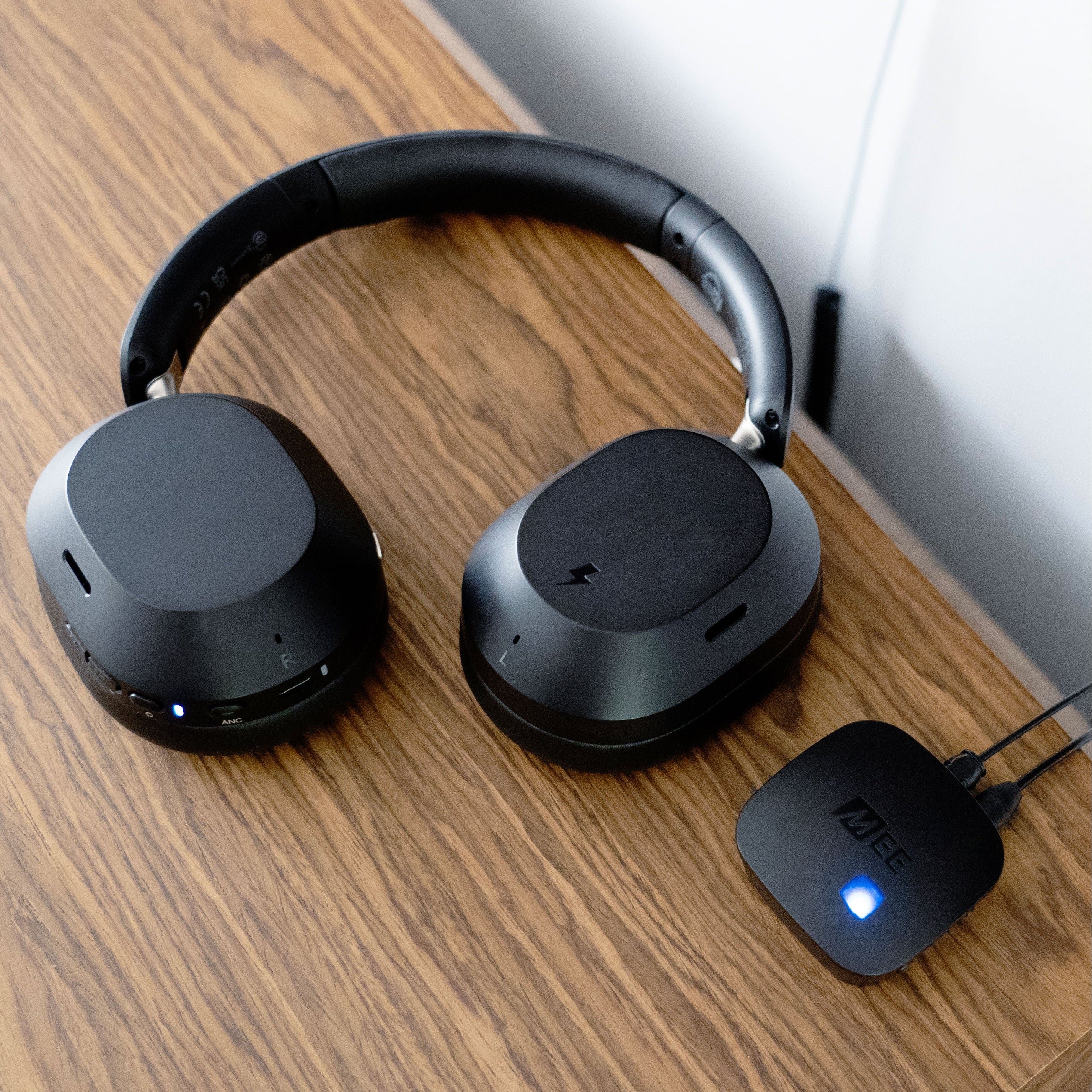
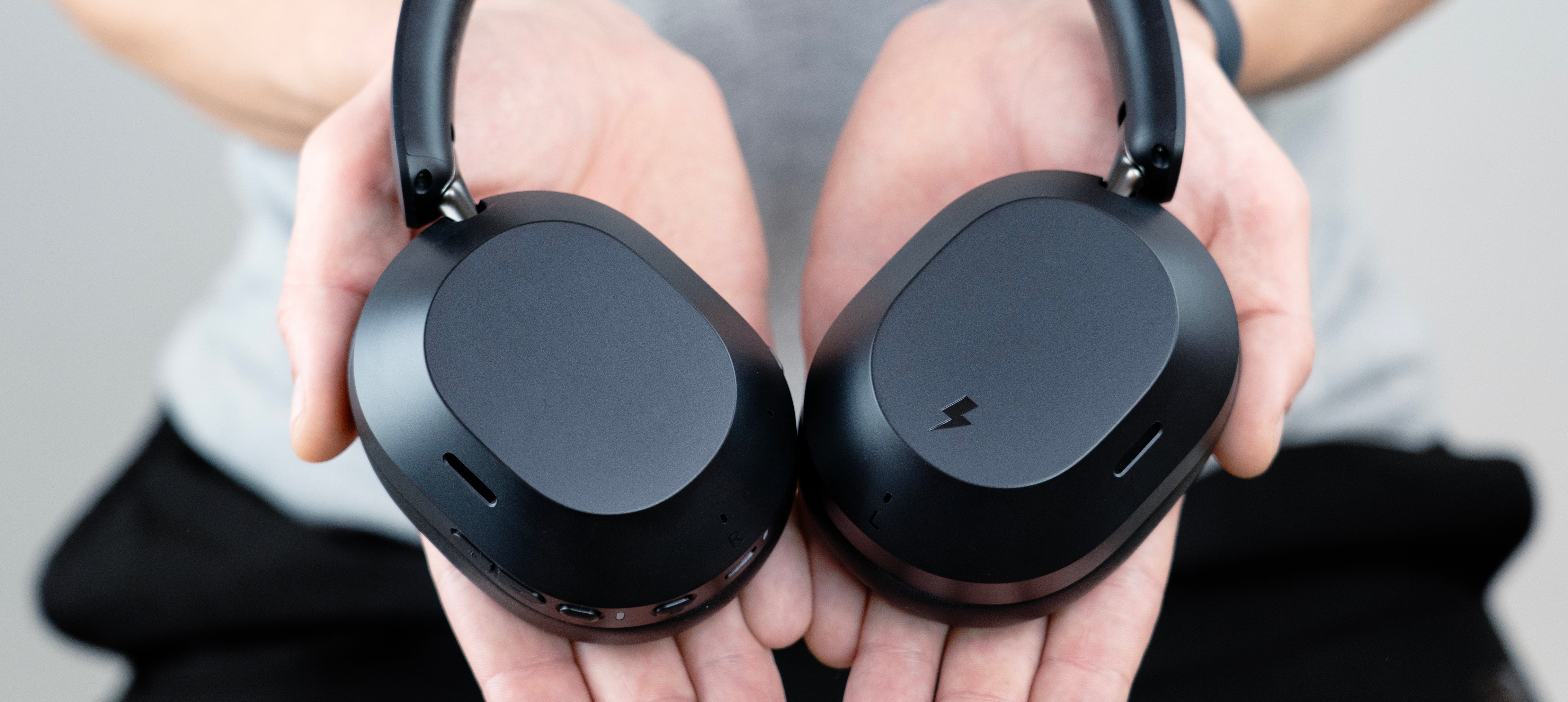
Connect T1CMA3D
Connect + Cinema 3D System General Questions
| Question: | Will the MEE audio Connect work with all TVs? |
| Answer: | The Connect works with TVs that have at least one supported audio out connection: digital audio out (optical TOSLINK), RCA audio out, or headphone jack. The Optical connection, if available, is generally recommended for best audio performance and flexibility. |
| Question: | Do I need to plug the MEE audio Connect into a power source? |
| Answer: | Yes. Although the Connect includes a built-in battery, it still needs to be plugged in to charge. We recommend keeping the Connect plugged in to a power source at all times. Note: Many TVs' USB ports only provide power when the TV is on, so your Connect may discharge even if plugged into a powered off TV. |
| Question: | Can others still hear my TV / Can I use my TV speakers at the same time? |
| Answer: | Yes, as long as your TV has an optical audio out. Simply plug the MEE audio Connect transmitter into your TV's optical port and you will be able to use Bluetooth headphones and the TV speakers at the same time. |
| Question: | Can I use the MEE audio Cinema 3D headphones with a phone or tablet? |
| Answer: | Yes, the Cinema 3D headphones can be used with any Bluetooth-enabled device including your phone or tablet! Just pair them through your device's Bluetooth settings as you would with any Bluetooth headset. |
| Question: | How do I connect my MEE audio Cinema 3D headphones to a Bluetooth-enabled TV, computer, phone, tablet, or other device? |
| Answer: | Power on your Cinema 3D headphones, then press and hold the VOL+ and VOL- buttons simultaneously to enter pairing mode. Once in pairing mode, open the Bluetooth pairing menu on your device and select "MEE audio Cinema 3D". |
| Question: | How do I connect my Cinema 3D headphones to an Auracast device? |
| Answer: | To use Auracast, first connect your Cinema 3D headphones to an Auracast-enabled phone or tablet via Bluetooth, then use your phone’s Auracast menu to find and join the desired broadcast. |
| Question: | Will I experience audio lag / latency when watching TV with my Cinema 3D headphones? |
| Answer: | No - most TVs, phones, and tablets will slow down the video slightly to match the audio when a Bluetooth headphone is connected in order to avoid lag. You can also minimize lag by using an aptX or aptX Adaptive-enabled Bluetooth transmitter instead. |